
Downloading and Mounting Server 2019 ISO
NOTE: Only download this ISO if you do not plan on using the ServerAcademy.com IT labs but plan on using a VirtualBox lab instead:
In this lecture, I'll be showing you how you can download Windows Server.
What we are going to do is open our preferred web browser here, and well go back to google.com.
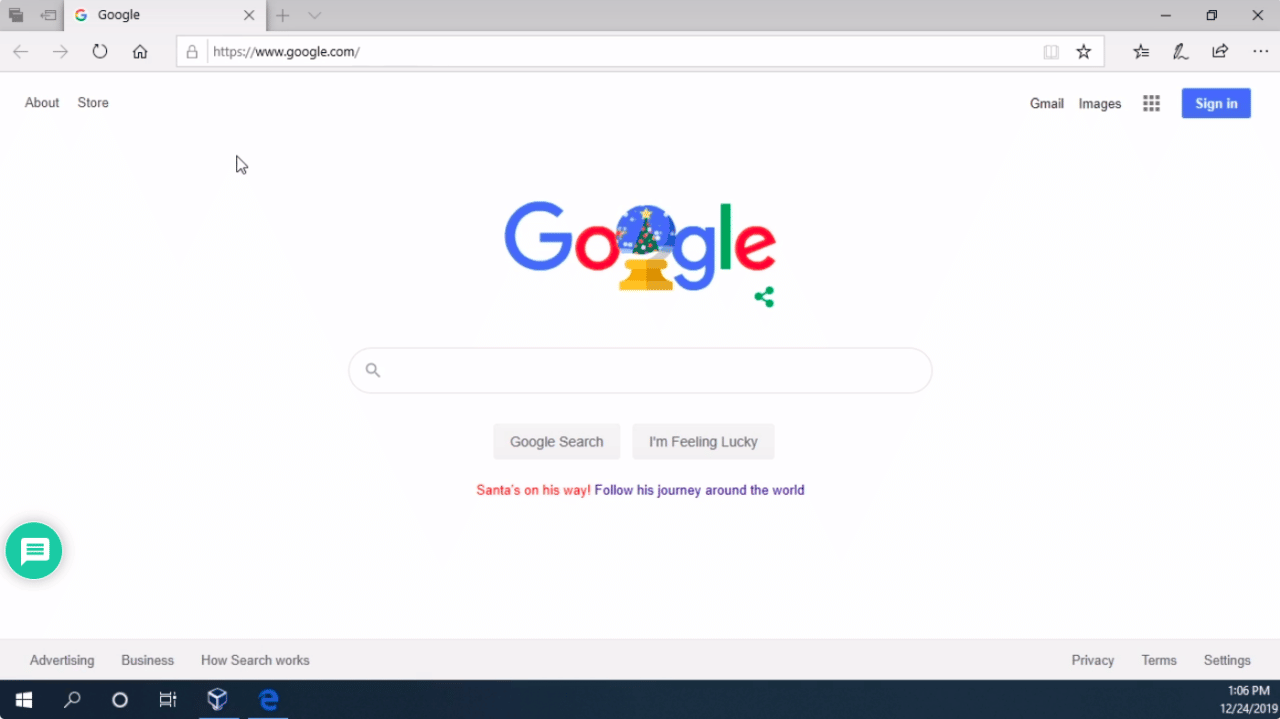 Web Browser
Now in the search bar, I am going to type in Windows Server, and whatever year I would like to use followed by a Download. In this lecture we are using 2019, so we'll just say Windows Server 2019 Download.
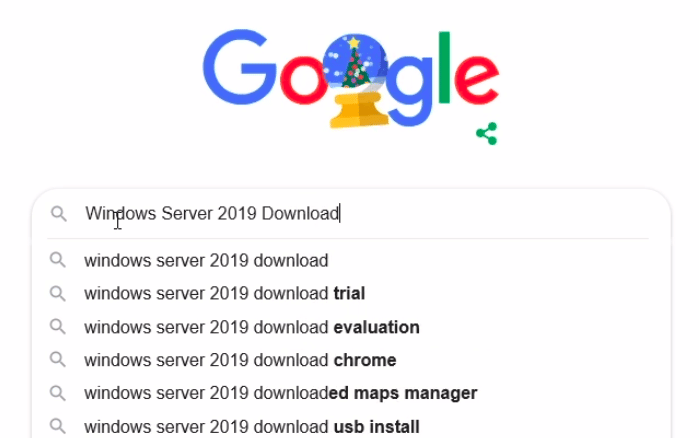 Search Windows Server 2019 Download
Now, if we scroll down here we should see the Microsoft Eval Center, which is this result right here. We are going to click on this link.
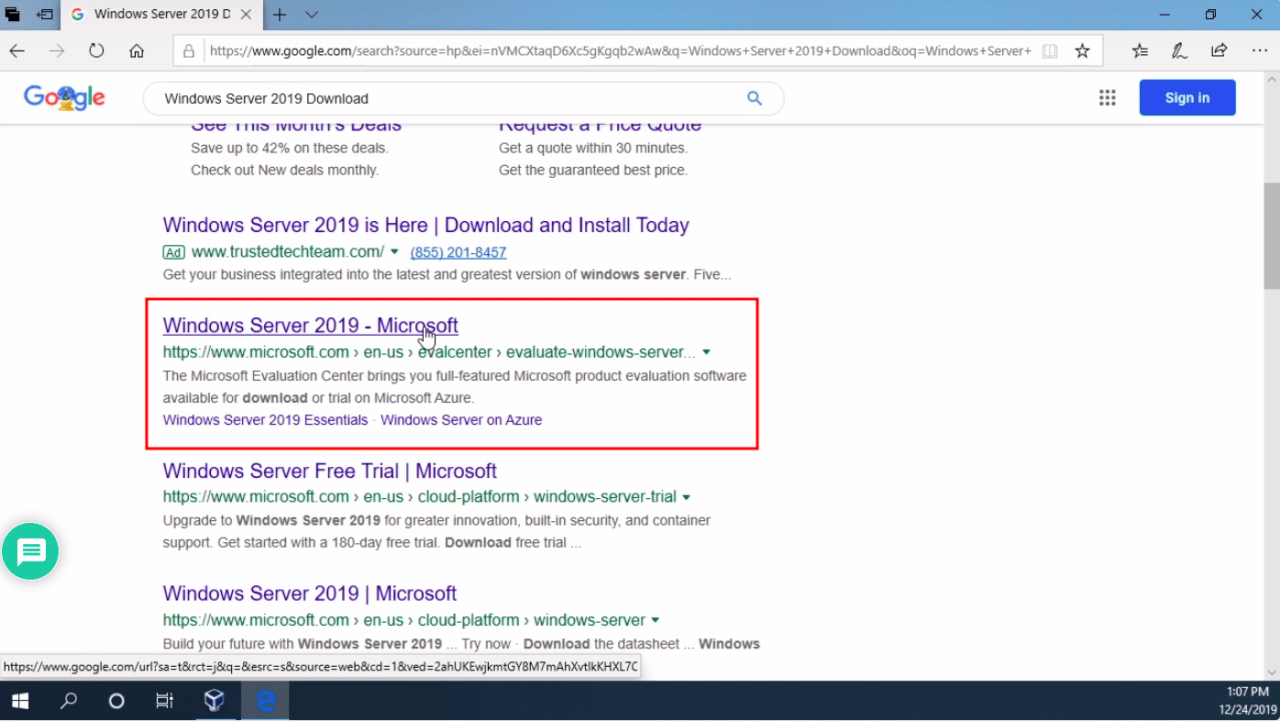 Microsoft Eval Center
And, we are going to proceed with this ISO download for Windows Server 2019. I'll click Continue.
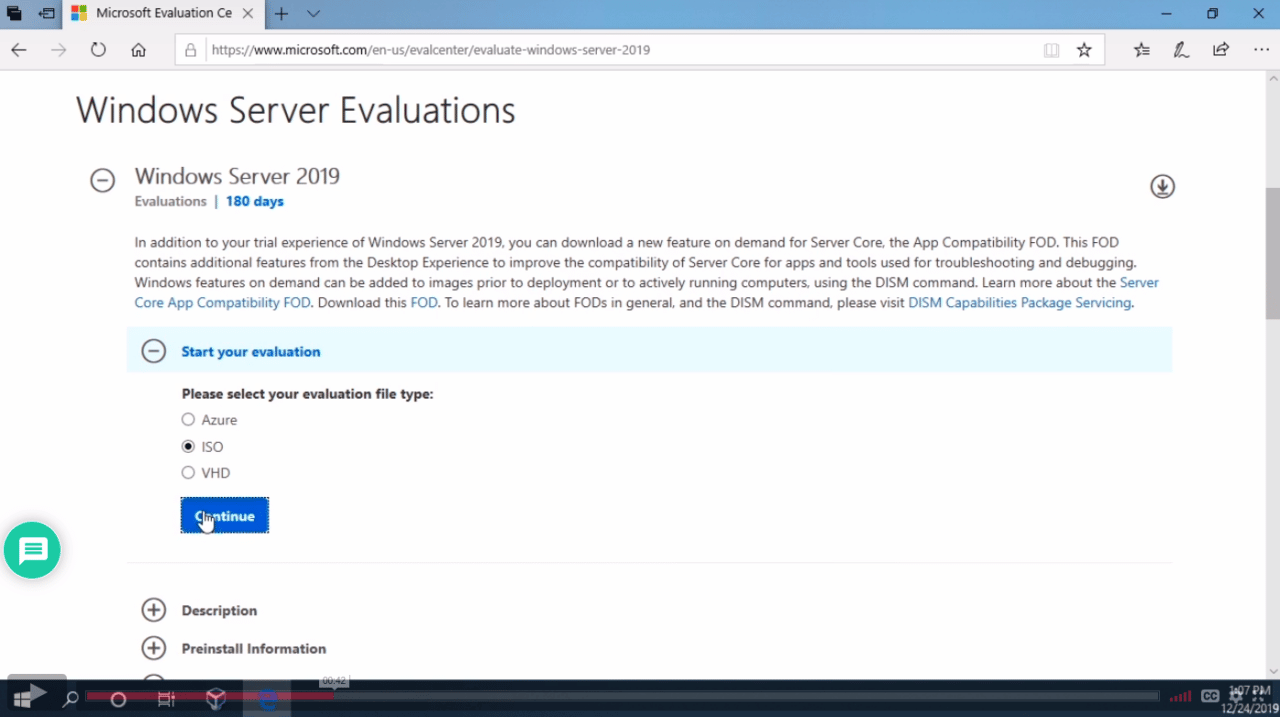 Selecting Evaluation type ISO
And this is going to have me type in some information that is personal to me.
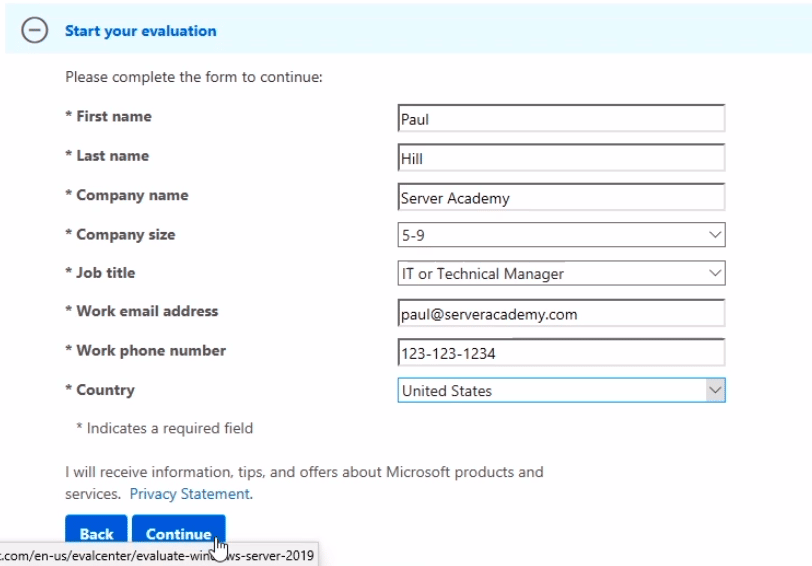 Completing the form
Once I typed in that information I am going to click Continue , and I am going to select the language. This is actually important, you want to choose English if appropriate. If you choose Chinese things can be a little bit…
No comments yet. Add the first comment to start the discussion.