
Creating the System Management Container
We are going to create the System Management Container that System Center Configuration Manager is going to use to store information important to SCCM like:
- Client computer installation and site assignment
- Port configuration for client-to-server communication
- Network Access Protection
- Content deployment scenarios
You may refer to this article for more information about the System Management Container.
Create the System Management Container
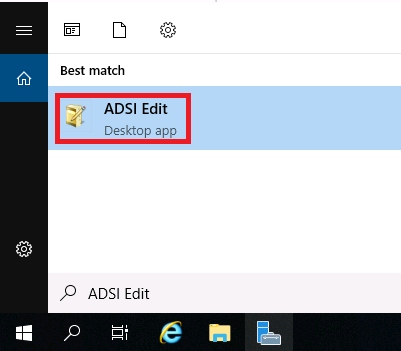
Log in to your Domain Controller and click the Windows button then search for and launch ADSI Edit.
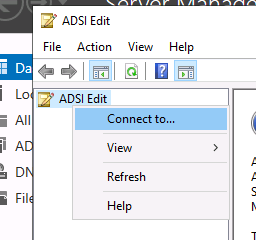
In the ADSI Edit console, right-click ADSI Edit at the top and select Connect to then click OK to connect to your domain. Usually the default settings are correct, but if you need to specify an alternate server you can before clicking OK.
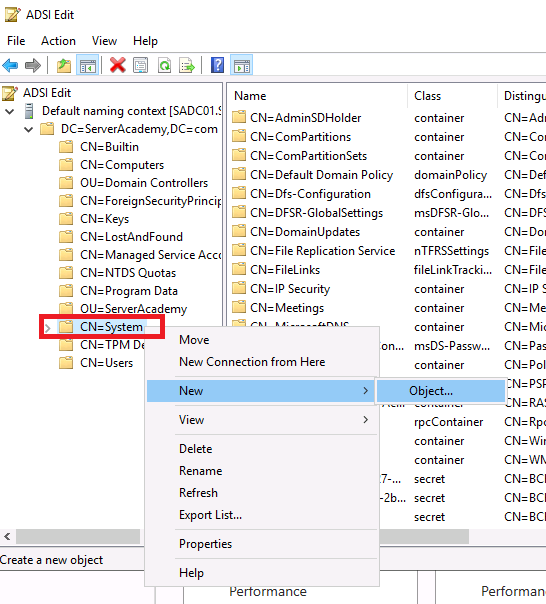
Within the left pane, left-click the “Default naming context”, then expand your domain name (in my case, serveracademy.com), right-click CN=System and select New > Object.
Select the container class and click Next. Under the Value textbox, enter the name “System Management”.
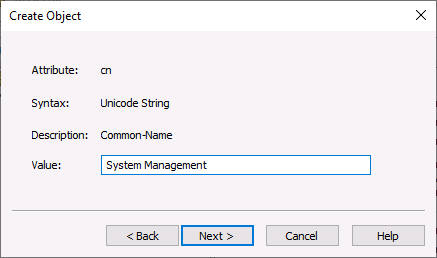
Click Next, then click Finish.
Alternatively, we can create the container with the Windows PowerShell commands below when we run the PowerShell console as an administrator:
Import-Module ActiveDirectory # Import AD module
$Container=”CN=System,"$((Get-ADDomain).DistinguishedName)” # Get container DN…
No comments yet. Add the first comment to start the discussion.