
Client Push Installation
In this lecture, we are going to deploy the Configuration Manager client using the Client Push method.
Now, if you are working in a lab environment, make sure you have your Domain Controller, your SCCM, and your Workstation VMs all powered On before proceeding on to this lecture.
We are also going to be switching between the SCCM server and our Windows 10 VM quite frequently, so be prepared to do that.
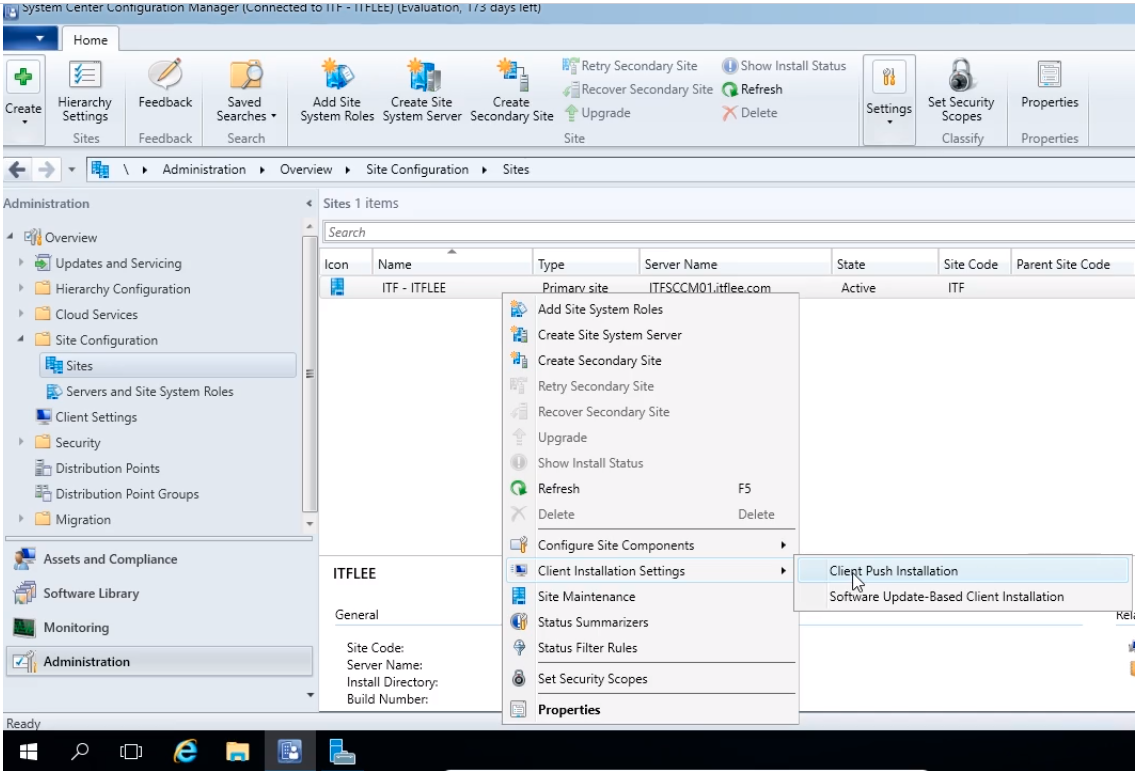
Before we attempt a client push, we need to make sure that SCCM will use a Domain Administrator account to install the client. We can do this by navigating over to the Administration tab, and selecting Site configuration, Click on Sites, and right-click on our server, and Client Installation Settings, click on Client Push Installation.
It's going to open the Client Push Installation Properties.
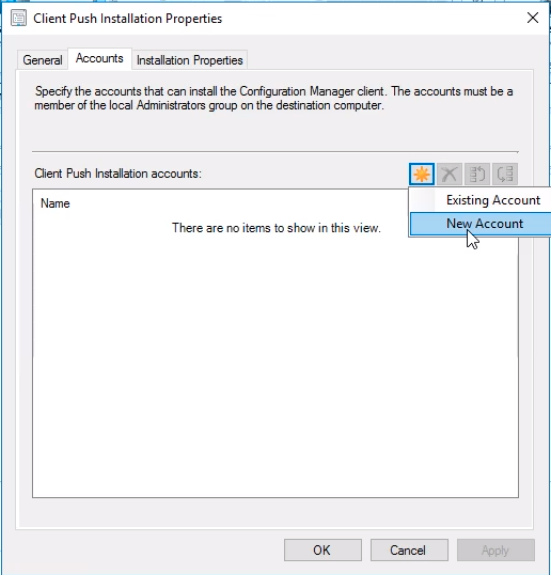
We click on the Accounts tab and we can see that there’s no account listed here. So we are not going to be able to do any kind of Client Push because we are not specifying an account.
What we need to do is click this Star button up here and select New Account.
Even though we are not creating a new account, as far as the Configuration Manager is concerned, there is no account specified and we are going to do that now.
Click the Browse button.
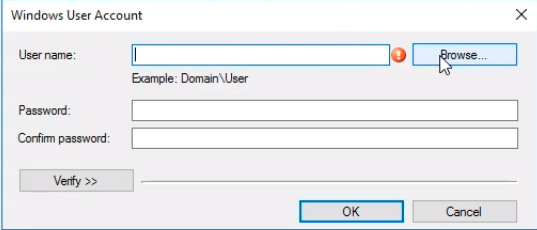
And we are going to search for SCCM Admin. Click Check Names and we can see that the username is resolved.
You could create a special SCCM client installation user account if you would like, the only thing you need to make sure you do is add it as a member of the Domain Administrators group.
We are just going to use the SCCMAdmin account in this example. Click OK.
No comments yet. Add the first comment to start the discussion.