
The Text Based Console Part 1- An Overview
**Before we dive into the Console **I need to tell you about the difference between running PowerShell in Normal Mode as opposed to Administrator Mode.
If you log into a Windows computer with user level security rights normally you won’t have the rights to be able to do things like change printer drivers, or read the system’s log file.
So, if I logon as a normal user PowerShells abilities will be limited as well.
Whatever system rights that the currently logged on user possesses, that’s how the PowerShell console will work.
I just wanted you to understand that you can run PowerShell in normal mode but your capabilities to run certain commands will be limited.
So how do you find PowerShell?
Click the search bar, type PowerShell.
Here we have Windows PowerShell, and Windows PowerShell ISE. These are our 64 bit versions of PowerShell.
Then we have x86 and Windows PowerShell ISE x86. These are our 32 bit versions of PowerShell, which we won’t be using in this course.
So if I just double click on Windows PowerShell I will be running in Normal User Mode.
That’s not what we want. I’m gonna to show you how to Pin PowerShell to the taskbar then customize it to run as administrator.
So go ahead and right click on 64 bit version of Windows PowerShell, choose pin to taskbar. Hold down the shift key, then right click on the PS icon in the taskbar, then click properties, click shortcut, then click advanced, then check run as administrator, click ok then click ok again.
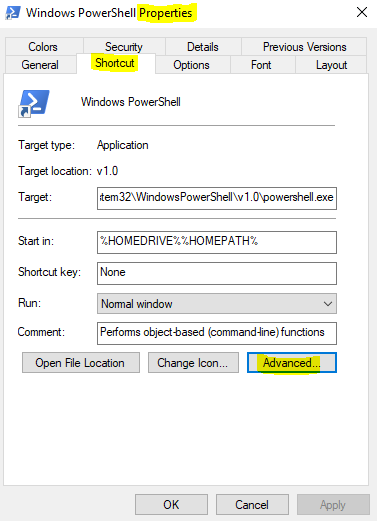
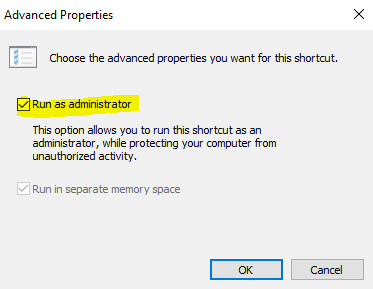
From the Taskbar, click your PowerShell Icon that you just created. Should come up in administrator mode
Now let’s go ahead and **Customize the PowerShell console **
- Right click the icon on the top left of your screen, click properties.
- The Pr…
No comments yet. Add the first comment to start the discussion.