
Running Powershell Scripts as Scheduled Tasks
In this lecture, I am going to show you how to create scheduled tasks to run your PowerShell scripts at a specific time on a general basis or just one time whatever the case might be.
So, what we are going to do is we are going to create a simple script that is going to add data to a text file and we are going to call the script to run every minute so that it gives us a good example how to create the scheduled tasks, how to write the scripts, and how to get them to execute.
So, the first thing we are going to do is open the PowerShell editor by hitting Start in the bottom left corner.
Now, I am going to type in powershell, and we are going to run the PowerShell Intelligent Scripting Environment or PowerShell ISE.
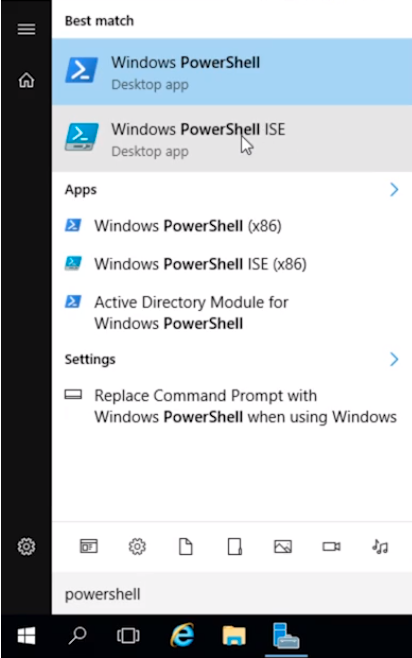
Once this loads we can begin writing the script.
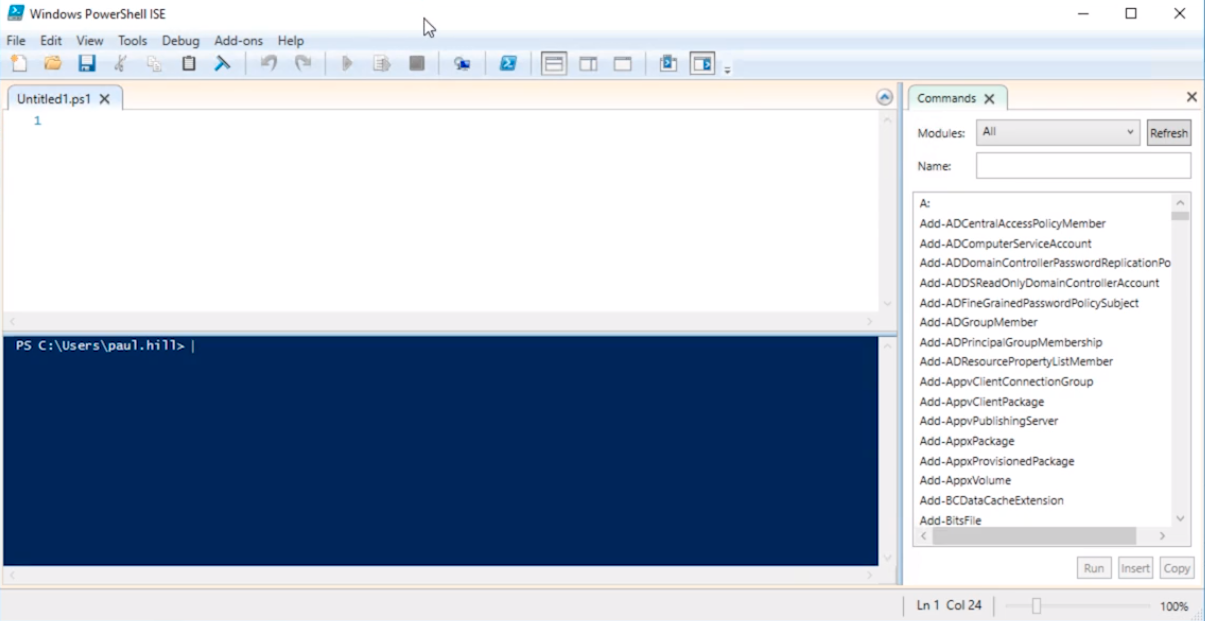
We are going to do a simple single-line command that is going to add some text followed by the date. Let’s start with the following and press Play.
$date = date
$content = “This is some cool content $date”
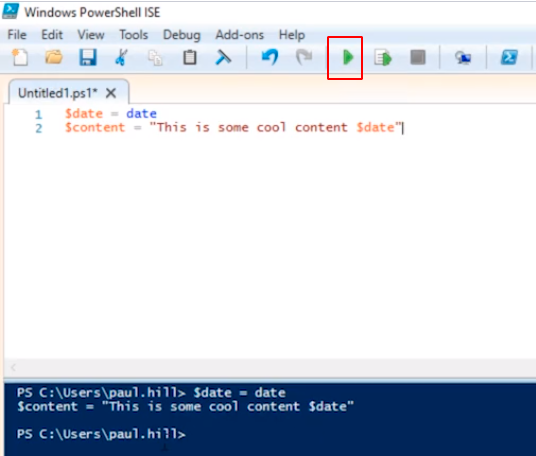
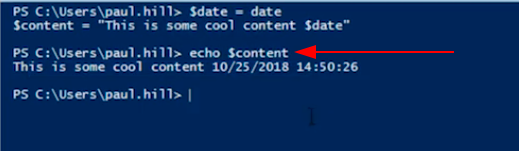
In the bottom pane if we type:
echo $content
This is the result we are going to get each time.
Now, what we need to do is continue editing adding:
$date = date
$content = “This is some cool content $date”
Add-Content C:\Scripts\Content.txt “$content”
exit
Click File > Save to save the script.
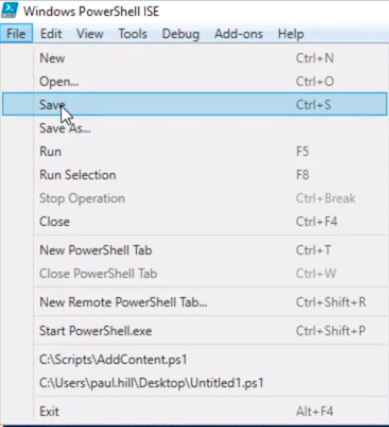
And, we are going to This PC > C:\ > and create a new folder called Scripts and name it AddContent.ps1. Click on Save.
![](ht…
No comments yet. Add the first comment to start the discussion.