
Installing Windows Server Roles and Features with Powershell
In this lecture, you are going to learn how to install Windows Server Roles and Features with Windows PowerShell.
Now, I am logged in to IPDC01, and the traditional way of installing Roles and Features as you probably already know is to click Manage from Server Manager and select Add Roles and Features from the menu.
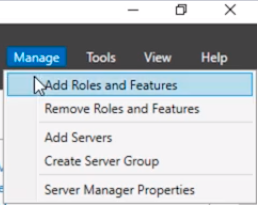
And you’ll go through this graphical user interface wizard and select the Roles that you want to install, or select the Features or both and click Install and proceed with the installation.
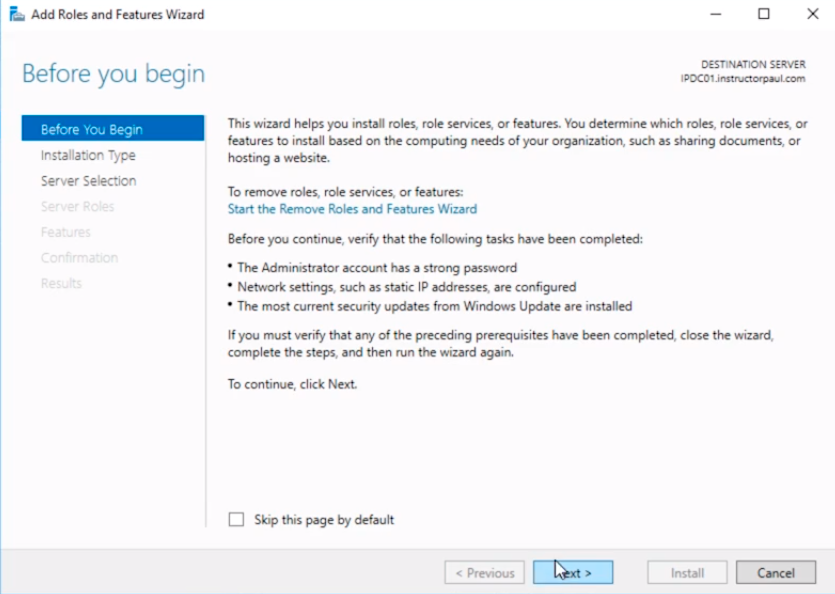
Now, if you want to do that as an automated or scripted or just write a PowerShell command you can do that, and I am just going to show you this right now.
So, what we are going to do is hit the Start button here in the bottom left and type powershell. We are going to open PowerShell as an Administrator.
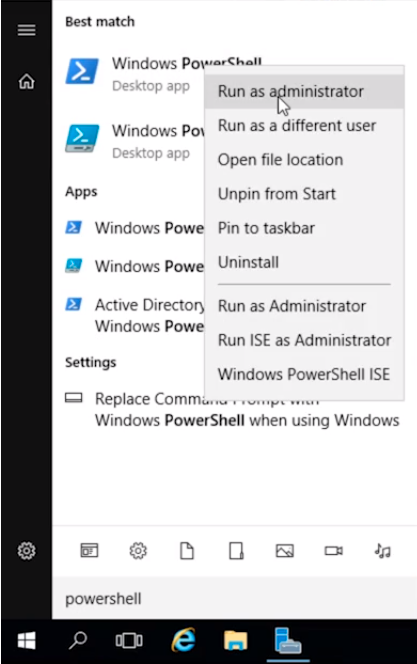
What we are going to do is start by getting all the commands that we are going to use for installing Windows Features and Roles. The Features is going to be Install Windows Features.
Type Get-Command | Select-String “feature” and press Enter.
So what we are essentially doing is get all the PowerShell commands that are available to me that contain the string feature.
These are all the PowerShell commands. Note that not all of them would be exactly relevant to what I want.
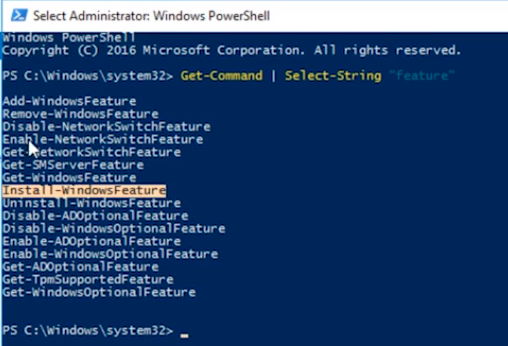
Here in the list, we have Install-WindowsFeature and this is the command we are looking for.
Now, you might be wondering, why don't we use Add-WindowsFeature? And, there is not really much of a difference between the two except that Install-Wi…
No comments yet. Add the first comment to start the discussion.