
Creating AD Users with PowerShell
In this lecture, I am going to be showing you how to create Active Directory Users with PowerShell.We are working on IPDC01. Remember that we need to execute these scripts in a Domain Controller with Active Directory or a computer that has the RSAT tools connected to a server that has the Active Directory Domain Services installed.
Open Windows PowerShell ISE from the start menu.
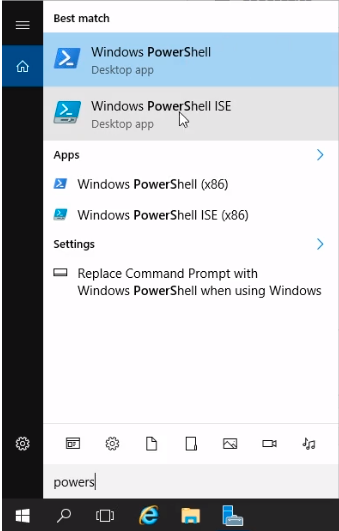
Windows PowerShell ISE will be launched. We prefer PowerShell ISE since it helps in developing and creating scripts and also if needed we can type commands in the button pane window.
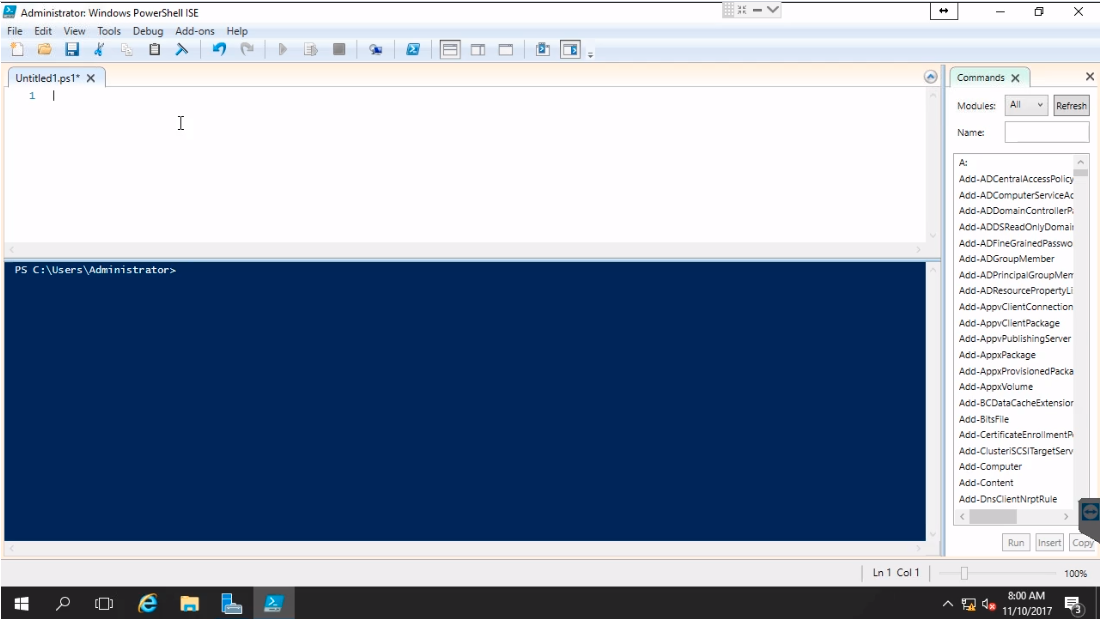
Let’s start by typing the Comment and Import the Active Directory Module.Since we are creating AD Users, we can type get-help New-ADUser to see all the options we can use.
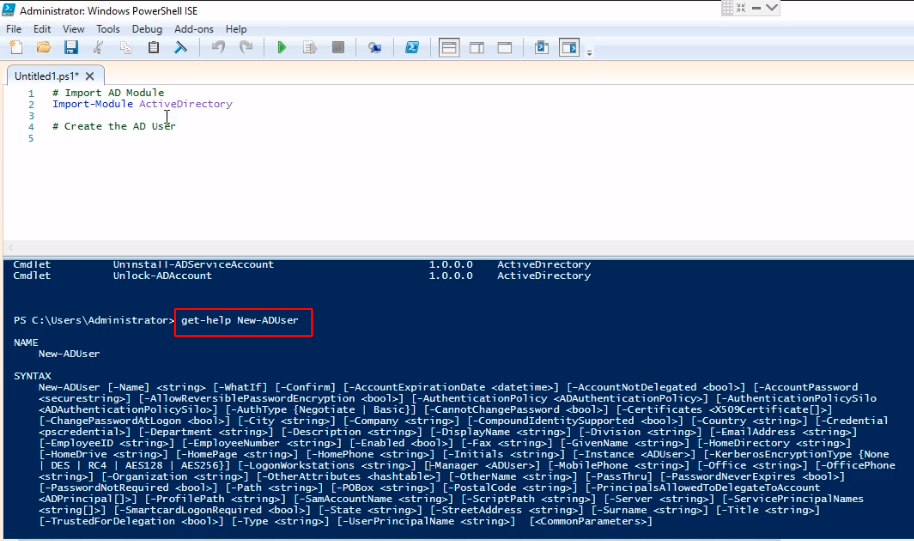
We will be typing our commands in separate lines using the backtick or grave accent (next to number 1) to have one long script break down in separate lines.
Import AD module
Import-Module ActiveDirectory
Create the AD User
New-ADUser `
-Name "Bradley Beal" `
-GivenName "Bradley" `
-Surname "Beal" `
-UserPrincipalName "Bradley.Beal" `
-AccountPassword (ConvertTo-SecureString "P@$$w0rd123" -AsPlainText -Force) `
-Path "OU=Domain Users,OU=instructorpaul,DC=instructorpaul,DC=com" `
-ChangePAsswordAtLogon 1 `
-Enabled 1
Now click on the green Play icon to execute the script.
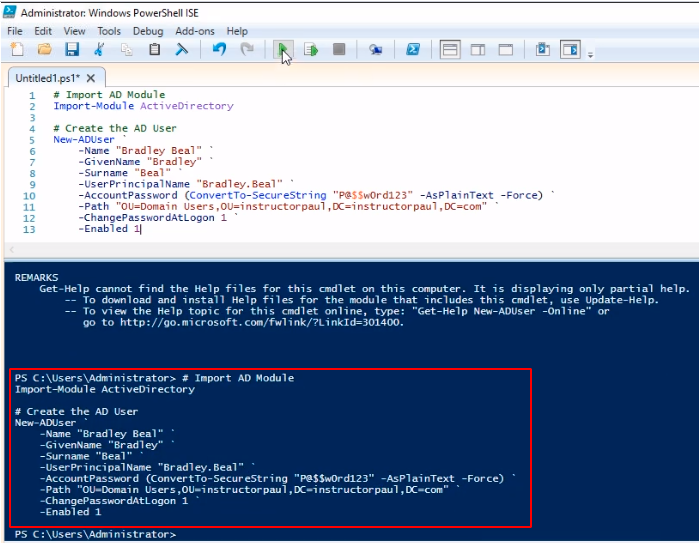
We can see the script executed.Check Active Directory to see if it is created (you might need to click refresh). We see our user account in Active Directory.
No comments yet. Add the first comment to start the discussion.