
Listing AD Users with PowerShell
In this lecture, we are going to be learning how to list Active Directory users with Windows PowerShell.
I am logged into a server that has Active Directory installed. This is the IPDC01 server.
NOTE: If you don’t have an Active Directory you will not be able to follow along in this lecture.
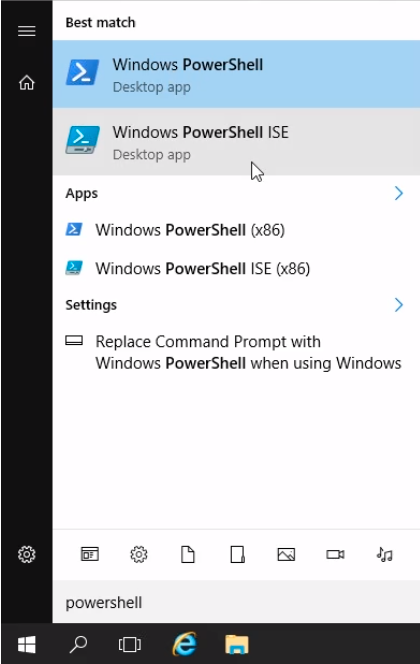
Let’s start by opening PowerShell. Click on the Windows icon on the bottom left and type powershell. I am going to select Windows PowerShell ISE.
Now, the first thing we are going to do is write a comment. Press Shift+3.
This # preceding the line is a comment, and will not get executed by PowerShell.
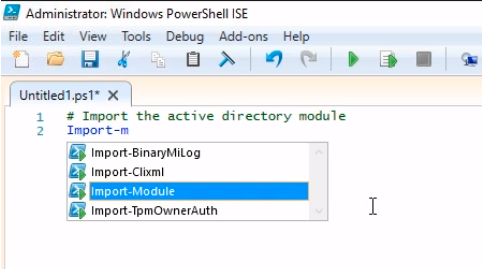
Next, we type Import-Module ActiveDirectory.
NOTE: When we type a command in the editor it gets populated by the Intellisense feature.
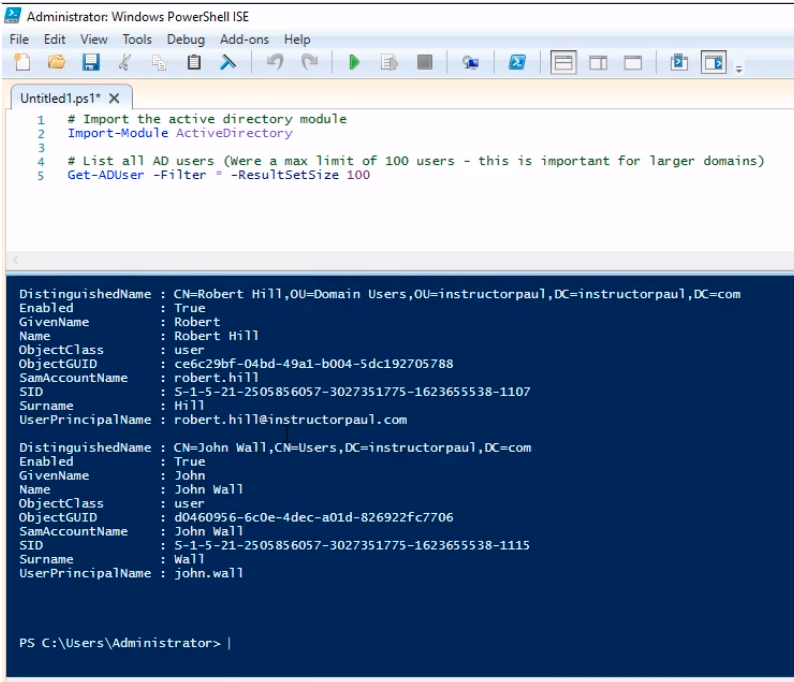
Let’s continue writing the code. The script will look as follows:
Import the active directory module
Import-Module ActiveDirectory
List all AD users (Were a max limit of 100 users - this is important for larger domains)
Get-ADUser -Filter * -ResultSetSize 100
Press the green Play button at the top to execute the script.
We see the results at the bottom pane of Windows PowerShell ISE.
Let’s try another example. Let’s do a list that is more user-friendly. Type the following code:
Import the active directory module
Import-Module ActiveDirectory
List all AD users (Were a max limit of 100 users - this is important for larger domains)
Get-ADUser -Filter * -ResultSetSize 100 | Select-Object Name
Press the green Play button at the top to execute the script.
We get now a list that is a lot easier to read.
![](https://zrftqtvkikjkbtkfalgp.supabase.co/storage/v1/obje…
No comments yet. Add the first comment to start the discussion.