
Promote the Server to a Domain Controller
In this lesson we are going to promote SADC01 to a domain controller.
Promote this server to a Domain controller
Step 1. Open Server Manager
Open Server Manager by clicking the Windows button and clicking Server Manager or by searching for Server Manager.
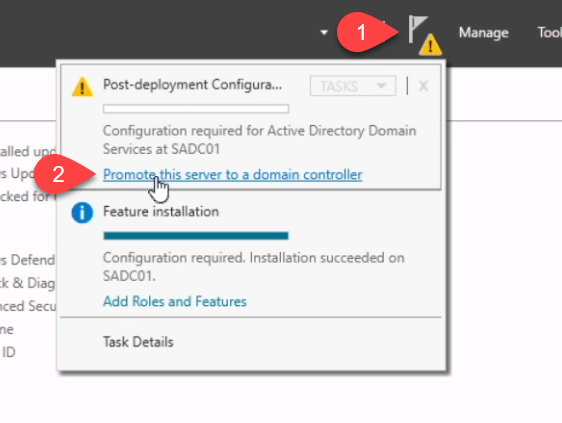
Step 2. Launch DC promotion wizard from Notification Flag
Select the notification flag, then Promote this server to a domain controller:
Step 3. Select the Deployment Operation
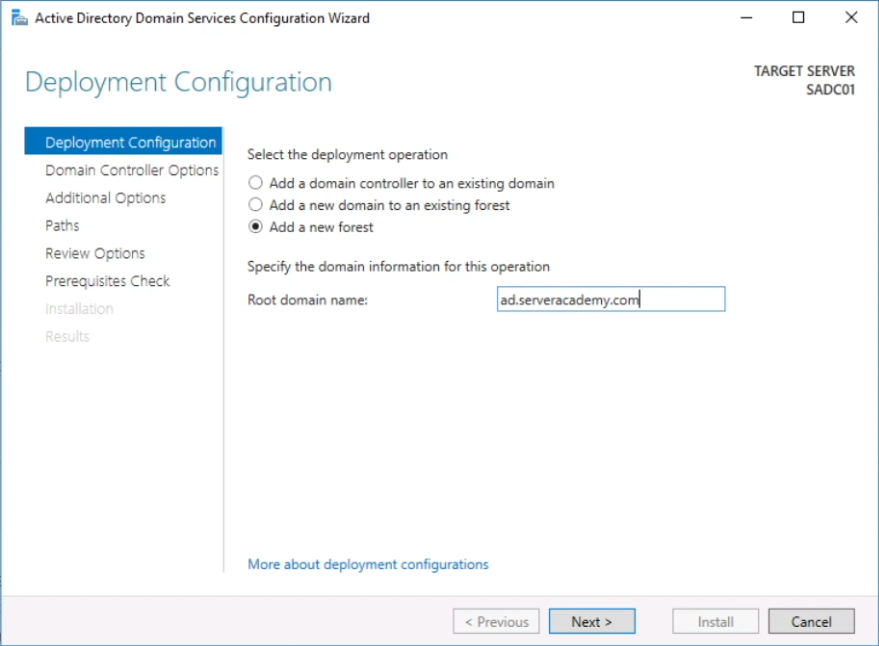
The next screen will ask you to specify if you want to join an existing domain, add a new domain to an existing forest or add a new forest. Since we are installing the first domain controller in our network, we will need to choose the last option.
Click Add a new forest. Enter your desired domain name (mine will be ad.serveracademy.com) and click Next:
Step 4. Configure Domain Controller Options
Domain and Forest Functional Level
Select the desired forest and domain functional level. The default options will work fine in our scenario.
If this is a new domain you should select the highest available option. You should only choose older options if you have older domain controllers in your domain or forest.
Specify Domain Controller Capabilities
The default opens for your first domain controller are DNS and GC (Global Catalog). This are required for the first domain controller installation in your domain unless you have a separate DNS server installed.
We do not, so we are going to go with those settings.
Specify the Directory Services Restore Mode (DSRM) password
The DSRM password is used when you launch the domain controller into DSRM mode. One example of when you will do this is when you need to restore a system state backup of the server.
For my la…
No comments yet. Add the first comment to start the discussion.