
Restoring an Active Directory Backup
In this lession, we will be restoring an Active Directory / System State backup of our primary domain controller. To get started, I am going to log in to my test lab, open Active Directory and start breaking stuff.
I’m going to delete the root OU I have called “Server Academy”. This will delete several user and computer accounts as well as other sub OUs.
First I need to enable Advanced Features by clicking View > Advanced Features, then I can open the properties of each OU and remove the protection from accidental deletion:
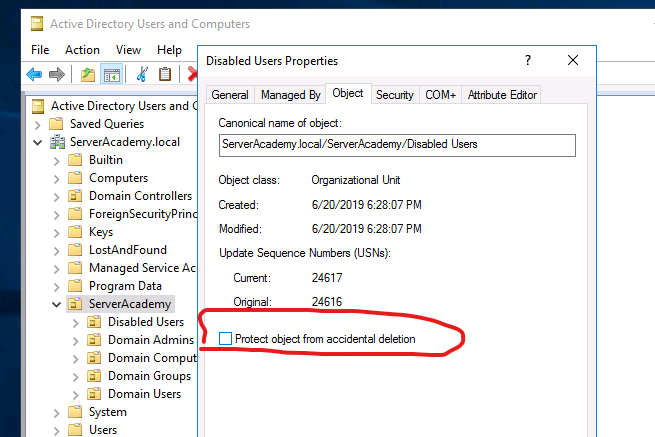
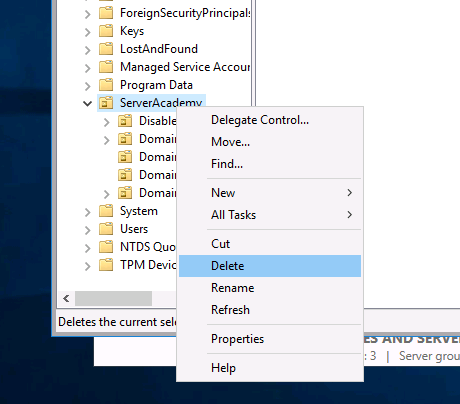
Now that I have repeated this for all the OUs, I can go ahead and delete the OUs:
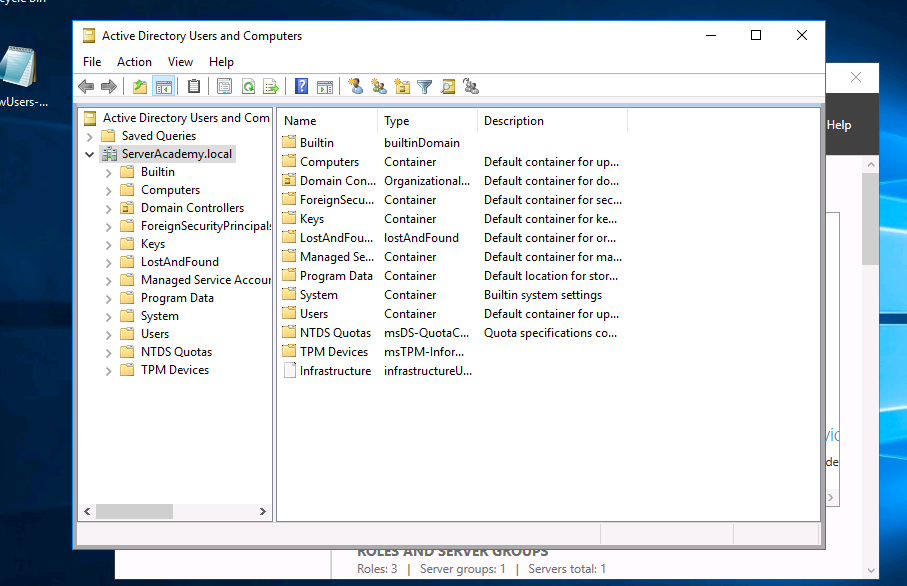
So now my OU and User Accounts are deleted:
Yikes! Now I need to restore my backup to get the data back. To restore a System State backup of an Active Directory we first need to boot the server into DSRM (Directory Services Restore Mode). We can boot into this mode by restarting the server and repeatidly pressing F8 from the moment the server powers off until you see the screen below:
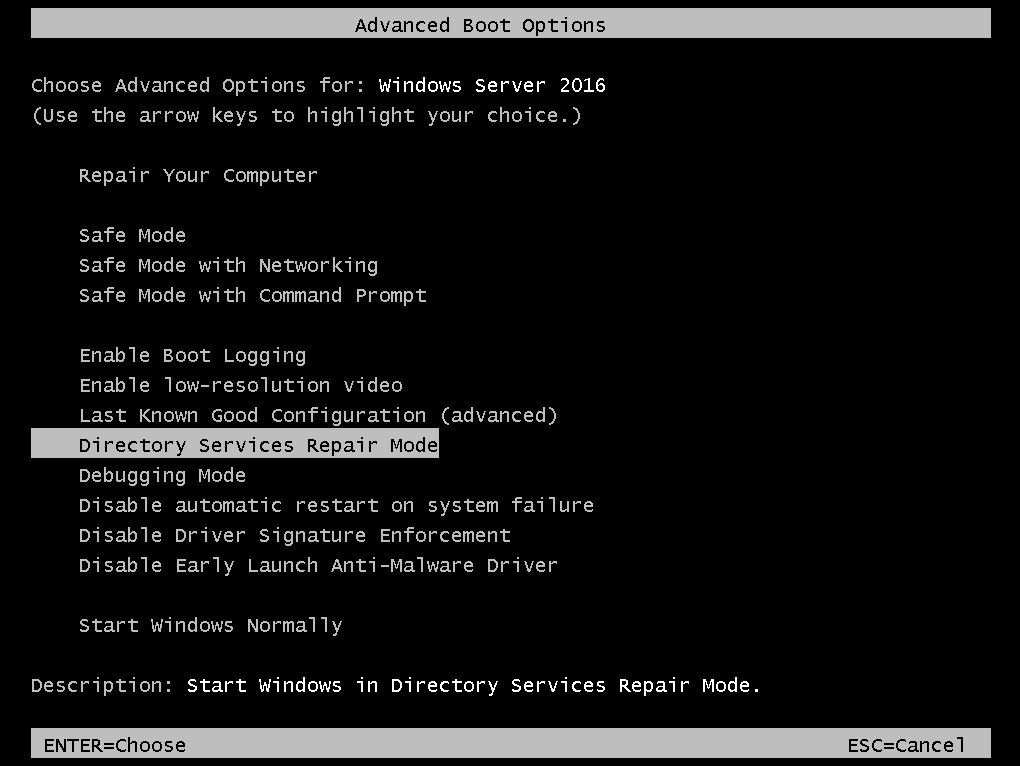
Select Directory Services Repair Mode, then press Enter.
Notice: If you don’t have physical access to the server or don’t see the prompt when you reboot the server, use MSConfig:
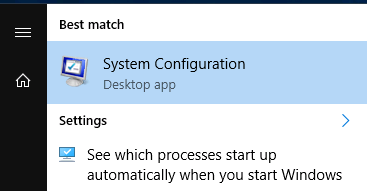
Then select Boot > Safe boot > Active Directory repair:
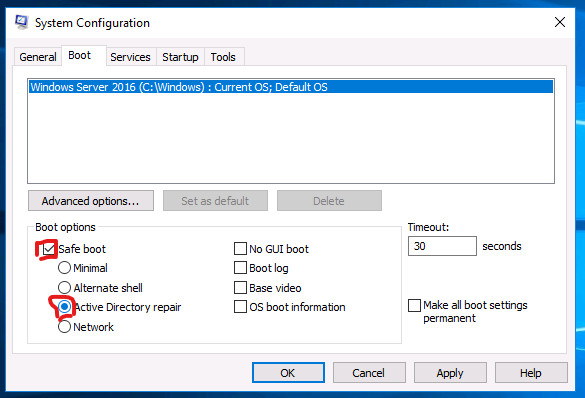
Click OK then restart:
No comments yet. Add the first comment to start the discussion.