
Searching for Objects in Active Directory
In this lesson you will learn how to search for objects within Active Directory.
Step 1. Open Server Manager
Open Server Manager by clicking the Windows button and clicking Server Manager or by searching for Server Manager.
Step 2. Start Active Directory
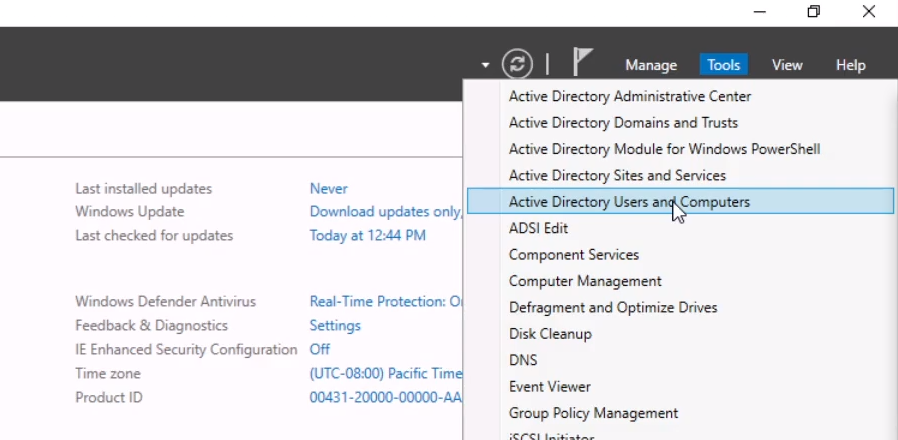
In server manager, click Tools > Active Directory Users and Computers:
Step 3. Click the Find Objects button
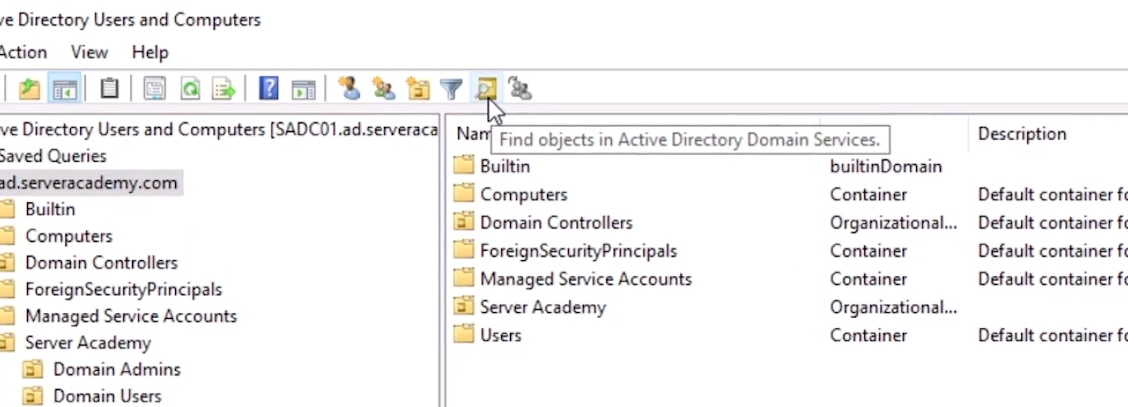
Inside of Active Directory, click the Find objects in Active Directory Domain Services button at the top of the toolbar:
Step 4. Search Active Directory
Next you need to choose what you are searching for and where to look:
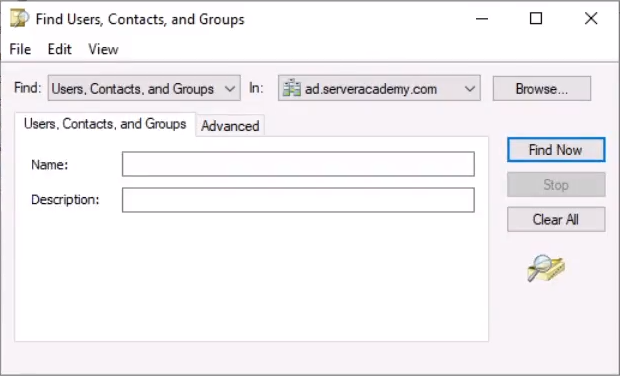
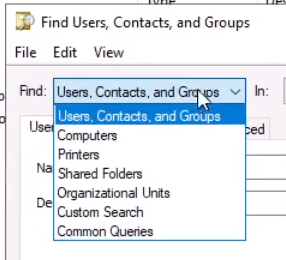
The find drop down lets you choose between the type of Object you are looking for. In our case, we are going to search for a user account, so we will leave it at the default option:
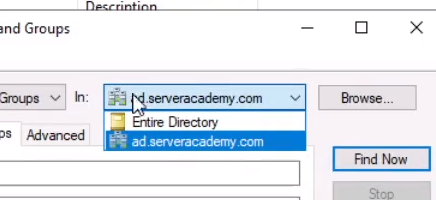
The in drop down will let you change the OU or domain you are searching for. You can also click Browse to select a specific OU.
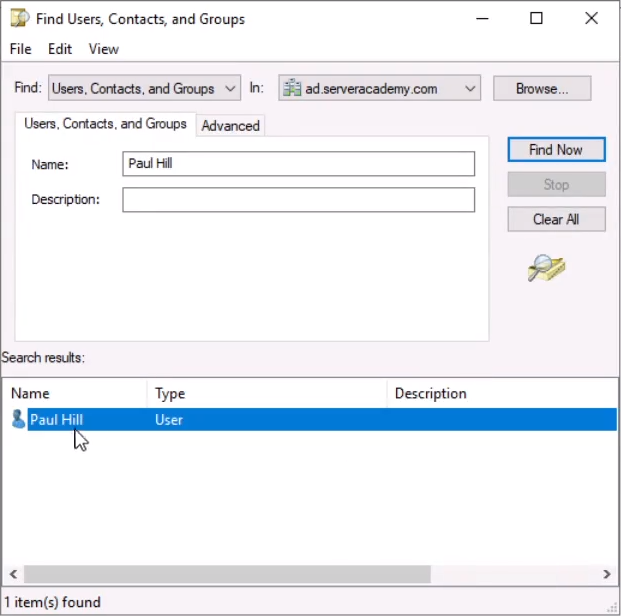
Type in the name of the user you want to find and click Find Now. I am searching for Paul Hill (my user account in my lab environment):
Step 5. Use Wild Cards
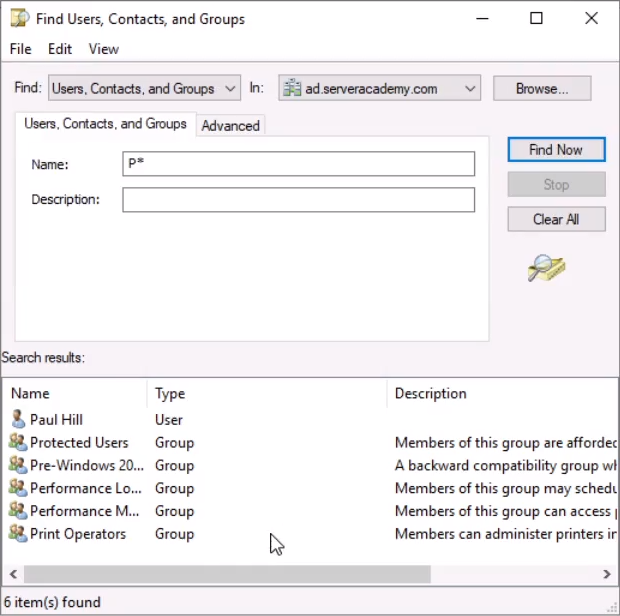
You can also use the * character as a wildcard to find any user account that start with the letter p:
This is incredibly…
No comments yet. Add the first comment to start the discussion.