
Launching an EC2 instance
In this lesson, we will go through the steps of launching an Amazon Elastic Compute Cloud (EC2) instance.
To begin, log in to your AWS account and go to the EC2 dashboard by clicking on the "Services" menu at the top of the page and selecting "EC2" under the "Compute" category:
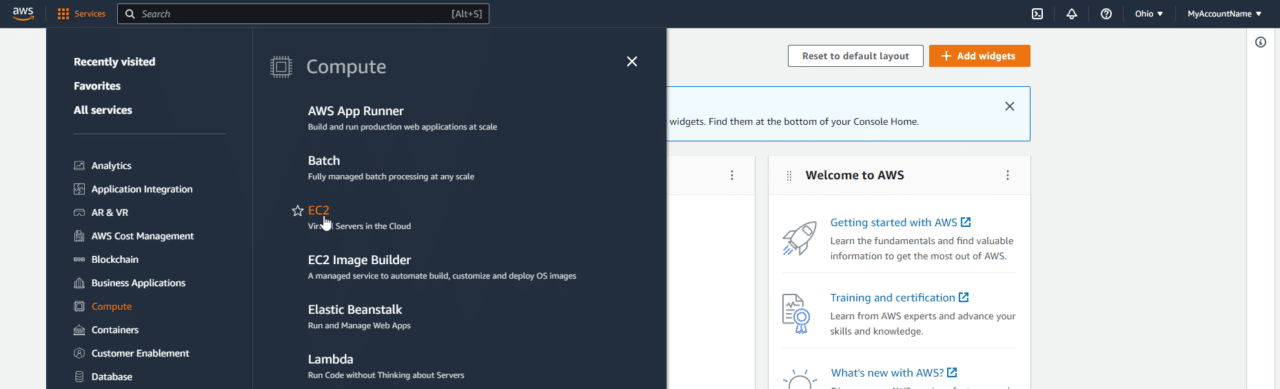 Opening the AWS EC2 Service Dashboard
Click the "Launch Instance" button to begin the process of launching an EC2 instance.
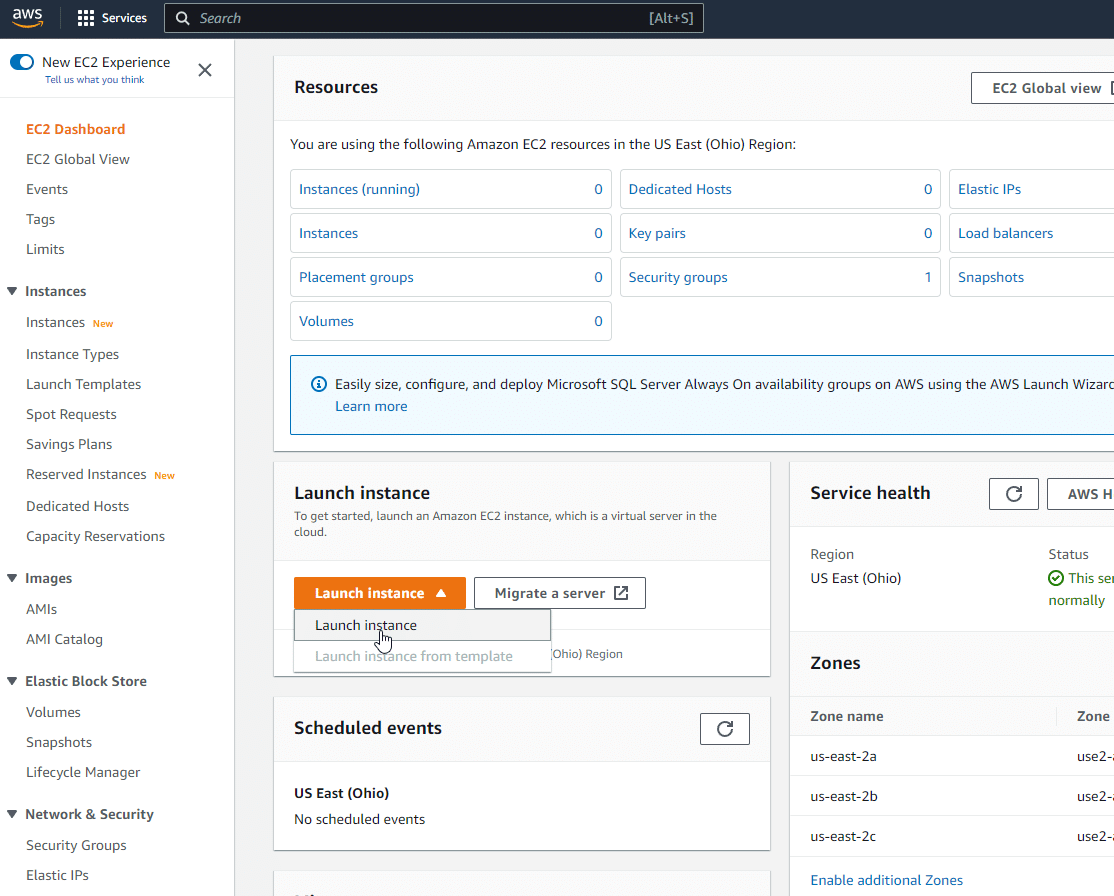 Launch an AWS EC2 Instance
Under Name and tags specify a name for your EC2 instance. I am going to name it AmazonLinux after the OS:
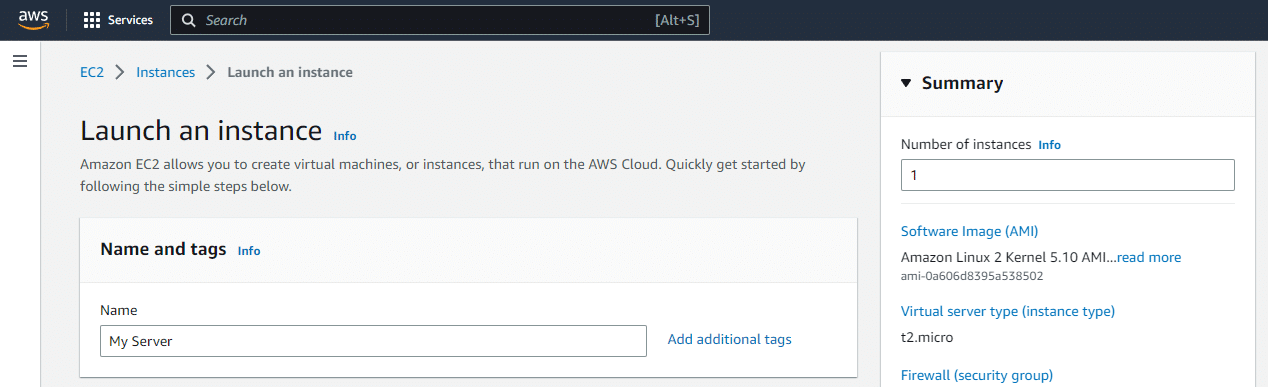 Name EC2 Instance
The Application and OS Images can be left blank at Amazon Linux, or you are free to select a specific image or OS. Remember that some of these can incur additional (probably not significant) charges.
Under Instance type , t2.micro should be selected by default which falls under the free tier so we will chose this option:
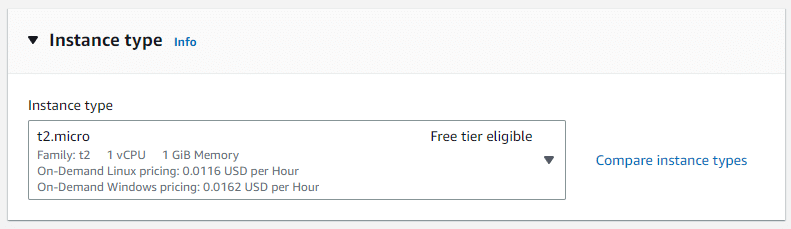 Select EC2 Instance Type
Amazon EC2 key pairs are a security feature of Amazon EC2 that allows users to securely connect to their Amazon EC2 instances. Since we haven't configured any key pairs let's click the Create new key pair to do so now. I will use firstkeypair as the name and choose RSA and .pem.
If you plan to use PuTTY (i.e. your on Windows and don't have an SSH client which is provided on newer installations of Windows), you will want to use .ppk for theprivate key file format.
![image 39](https://zrftqtvkikjkbtkfalgp.supabase.co/storage/v1/object/publ…
No comments yet. Add the first comment to start the discussion.