
Managing WSUS Client Computers and Groups
In this lecture, I want to talk to you about managing your WSUS clients and how to create and manage computer groups within WSUS.
In IPWSUS01 open your WSUS management console and expand IPWSUS01 > Computers > All Computers > Unassigned Computers.
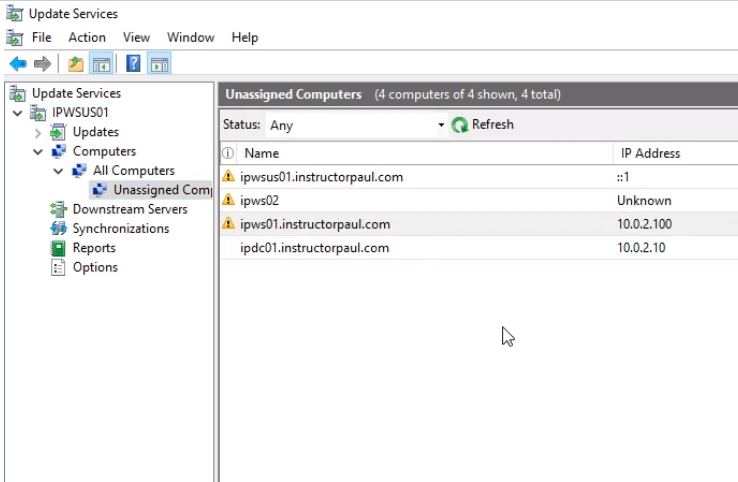
By default, everything is dumped into the Unassigned Computers group. If you are familiar with Active Directory it’s a bit like the Computers container: it is like the default slot for all your new computers to be added.
What we want to do is to organize things a little bit. It will be nice to split our Windows 10 operating systems into a Windows 10 group, and our Server 2016 operating systems into a Server 2016 group. We can also create a group for non-domain joined computers and things like that.
NOTE: When you are approving Windows Updates, you can approve them to certain computer groups. So, keep in mind that when you approve a Windows update and you approve all the updates to Windows Server 2016, Windows 10, Windows 7 if we are just approving them to all Unassigned Computers there is not going to be any issues with WSUS trying to install a Server 2016 update on a Windows 10 operating system. WSUS is smart to know if the update applies to the computer to which you approve the update.
What we want to do is organize our domain and keep it a little bit more structured. If you work in a large production environment it is a good idea to create Test Groups. If you work with Developers that do .Net development or build applications for Windows, you don’t want to approve a brand new update and deploy it to the whole domain because it could break things with your Developers. New patches change the way things work and will require code changes, so it would be a good idea for you to create a test group that only includes 3 or 4 computers and apply those new updates to the test group, and allow your testers t…
No comments yet. Add the first comment to start the discussion.