
Approving WSUS Updates
In this lecture, we are going to talk about approving WSUS into your domain and into your environment.
Open WSUS Console and go to the Updates tab. The first thing we can see is the Overview section in the center pane with All Updates, Critical Updates, Security Updates, and WSUS Updates.
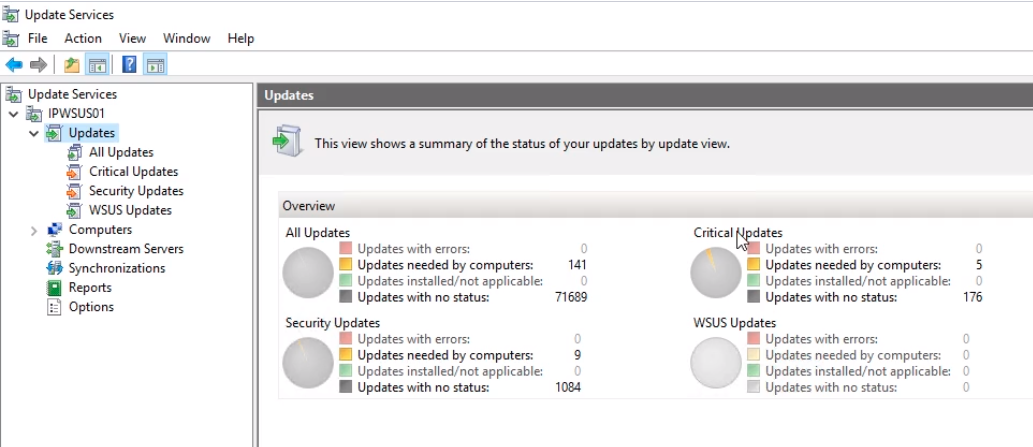
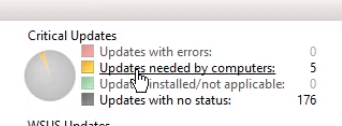
If we zoom in to the Critical Updates section for example we can see we have 5 Updates needed by the computers. Clicking on it will take us to the Critical Updates section.
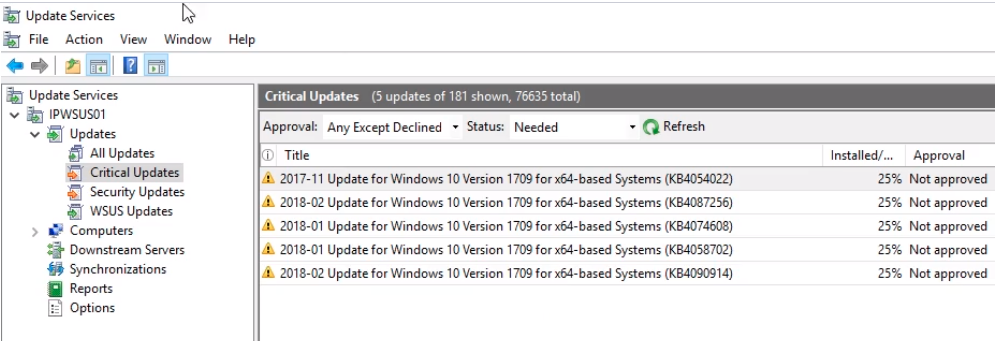
WSUS will show us those 5 updates which we will need to approve. These are all for Windows 10.
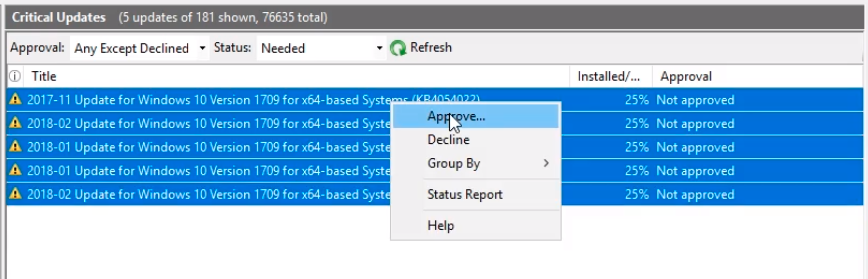
We can press shift and select them all and right-click to select Approve...
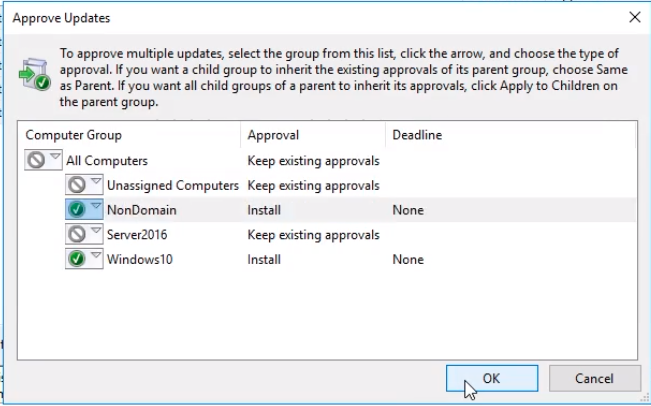
And we can approve these to our Windows 10 Group by clicking on the drop-down and selecting Approved for Install. Doing the same for NonDomain Group since we have some Windows 10 workstations not joined to the domain.
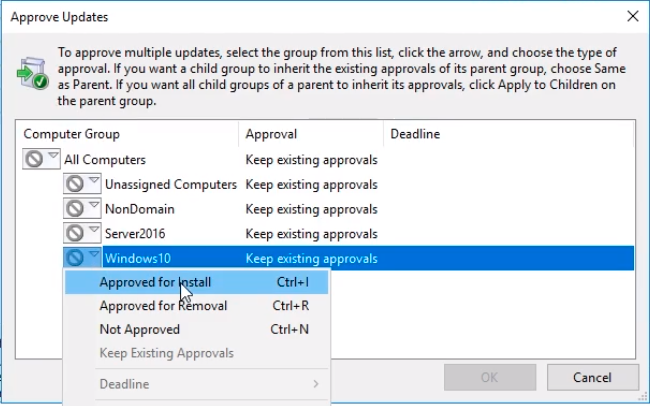
NOTE: Remember that even if we have a Windows Server 2016 in the NonDomain group WSUS will not install the Windows 10 updates on our Windows Servers. WSUS is smart to determine if the update is applicable or not to the computer in the group.
Click the OK button to close the window.
An approval window will be displayed with all the updates we just approved. Click Close when done.
![](https://zrftqtvkikjkbtkfalgp.supabase.co/storage/v1/object/public/lesson-images/2…
No comments yet. Add the first comment to start the discussion.