
Configuring WSUS with Group Policy
In this lecture, I am going to be showing you how to configure your WSUS clients with Group Policy.
Open the IPDC01 server and open Server Manager > Tools > Group Policy Management and create a new GPO.
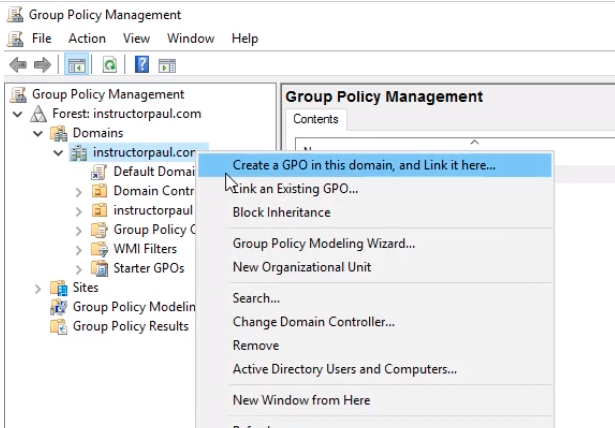
Expand the Forest: instructorpaul.com > Domains > instructorpaul.com. Right-click instructorpaul.com and select from the context menu Create a GPO in this domain and link it here...
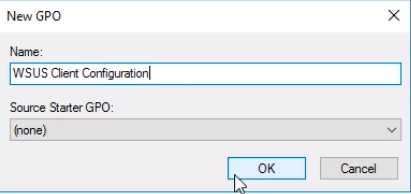
Name the GPO to something relevant to WSUS. Let’s call it WSUS Client Configuration and click OK.
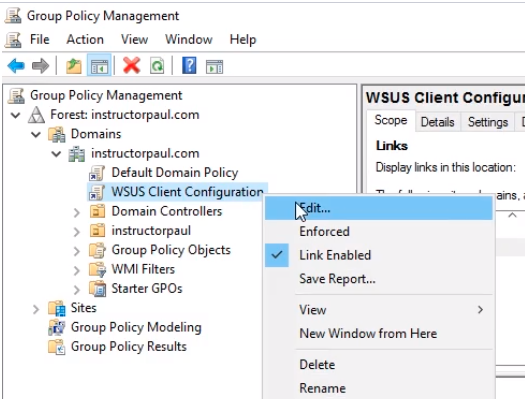
Right-click the GPO and select Edit.
Navigate to Computer Configuration > Policies > Administrative Templates > Windows Components > Windows Update.
We have a lot of configurations but there’s really a couple we just have to do.
Choose Configure Automatic Updates by right-clicking on it and selecting Edit.
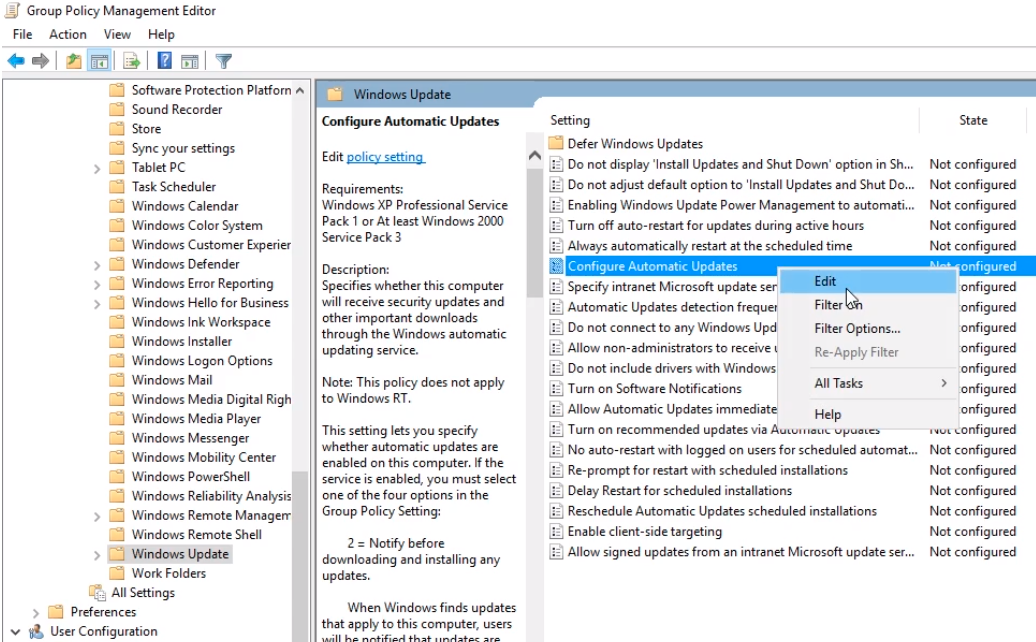
On the Configure Automatic Update settings window, we can configure the settings for every Windows computer in our domain.
Choose the Enabled radio button and under Options for the option to Configure automatic updating choose 4 - Auto download and schedule the install.
We do not want our users choosing whether or not to install their updates because most people avoid updating their workstations.
For the Scheduled install day, choose 0 - Every day, and for the Scheduled install time 22:00. Choose a day and time when your users are not using the workstation. If you have a 24/7 environment you can choose a weekend or a time when the business is low.
Check the Install updates for other Microsoft products check box.
The final re…
No comments yet. Add the first comment to start the discussion.