
Configuring Our WSUS Server
In this lecture, we are going to be configuring our IPWSUS01 Windows Server Update Services instance.
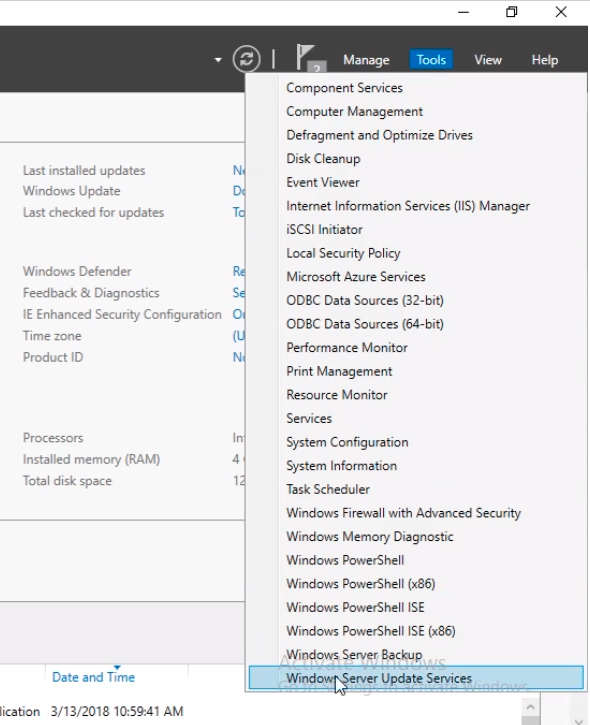
Open Server Manager > Tools > Windows Server Update Services.
Now, we notice that when opening it we have a wizard that is asking us to configure WSUS.
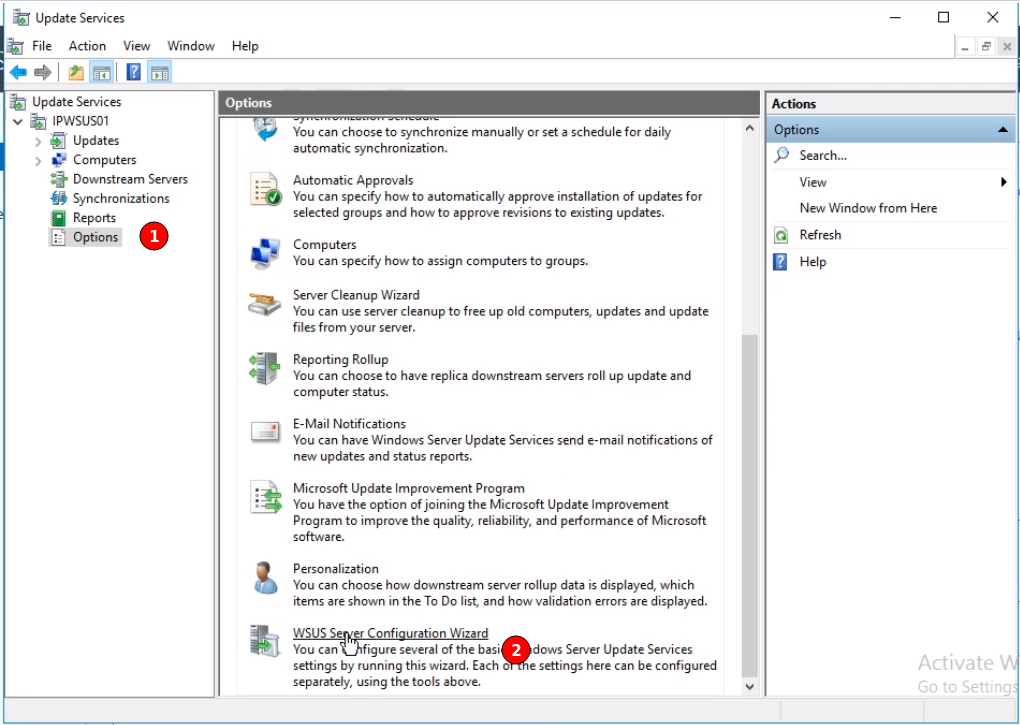
If you close the wizard and have WSUS open, you can navigate to Options (1) > WSUS Server Configuration WIzard (2).
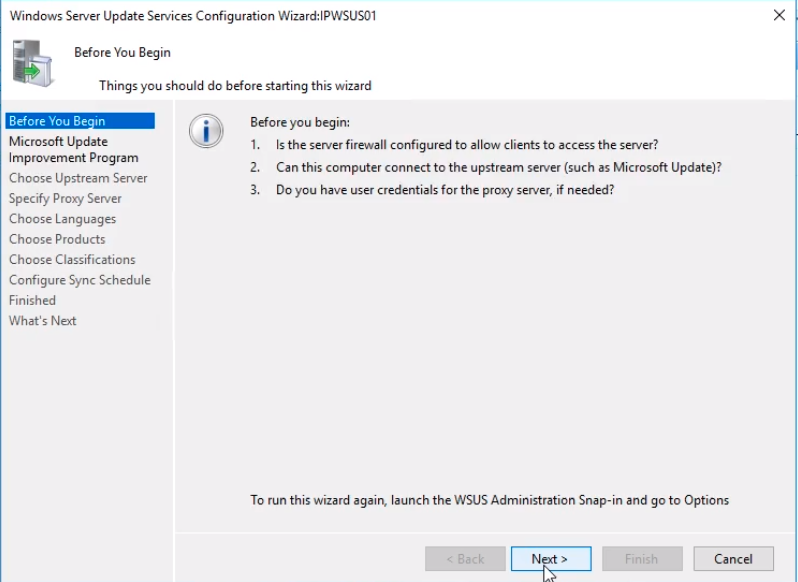
On the Before You Begin page we have a couple of questions we need to consider. Click Next to continue.
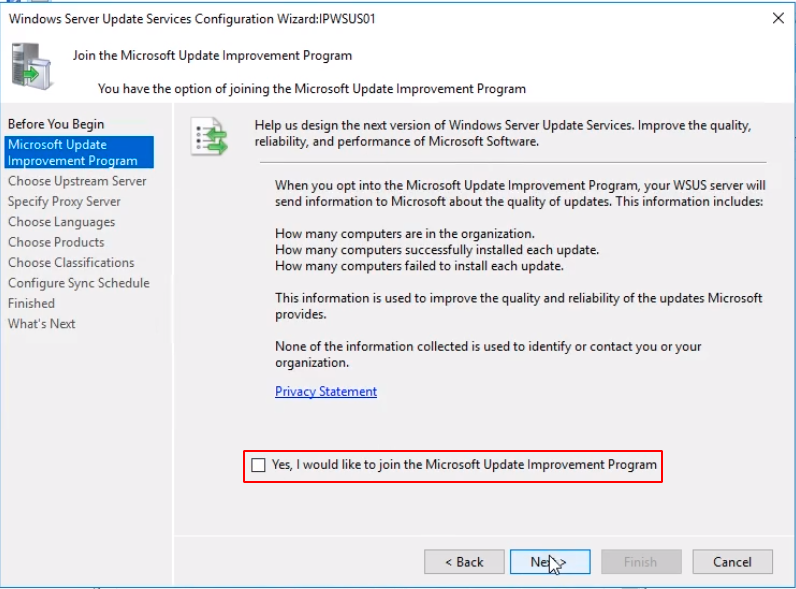
We have the option to opt into the Microsoft Update Improvement Program. Since we are in a lab environment we are going to uncheck that option.
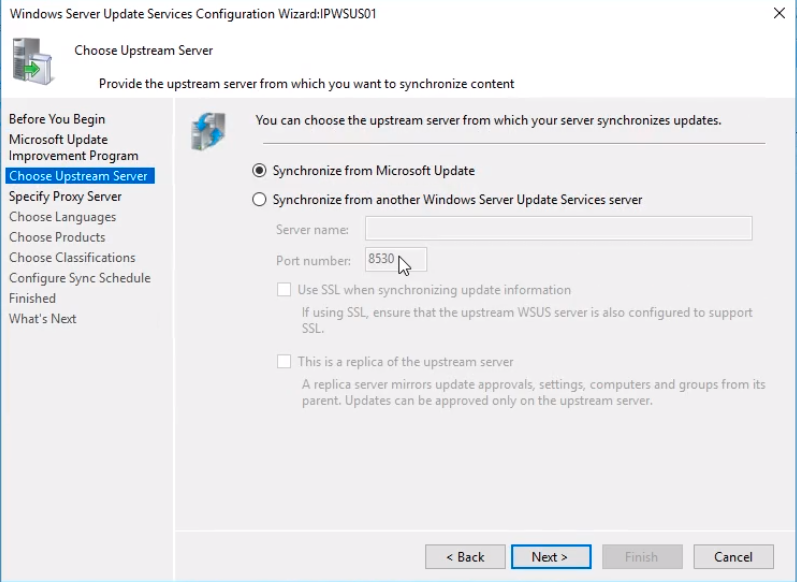
Now we need to Choose Upstream Server. We choose the radio button to Synchronize from Microsoft Update. Click Next to continue.
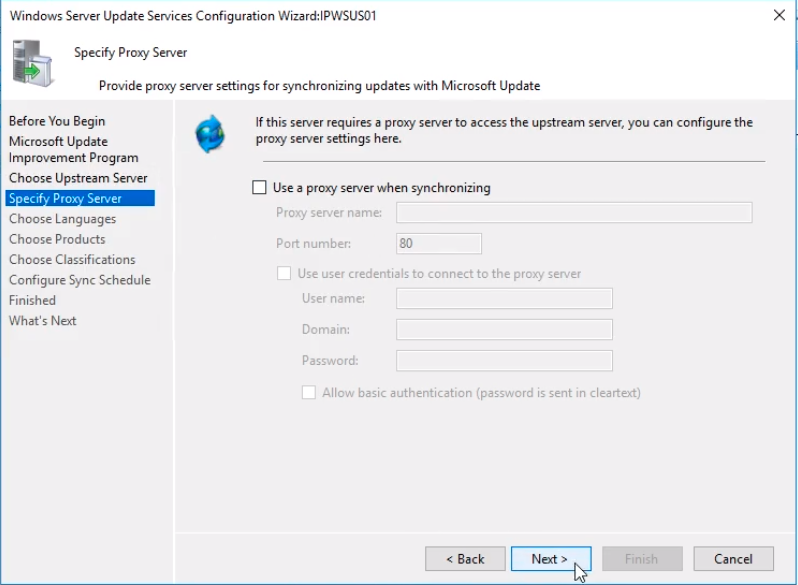
In the Specify Proxy Server window, we can enter proxy information for our network if we have one. Since we don’t have it in our lab environment we click Next.
Now in the Connect to Upstream Server window we need to test our connection by clicking the Start Connecting button. This will initiate a test process. This process takes around 5 minutes.
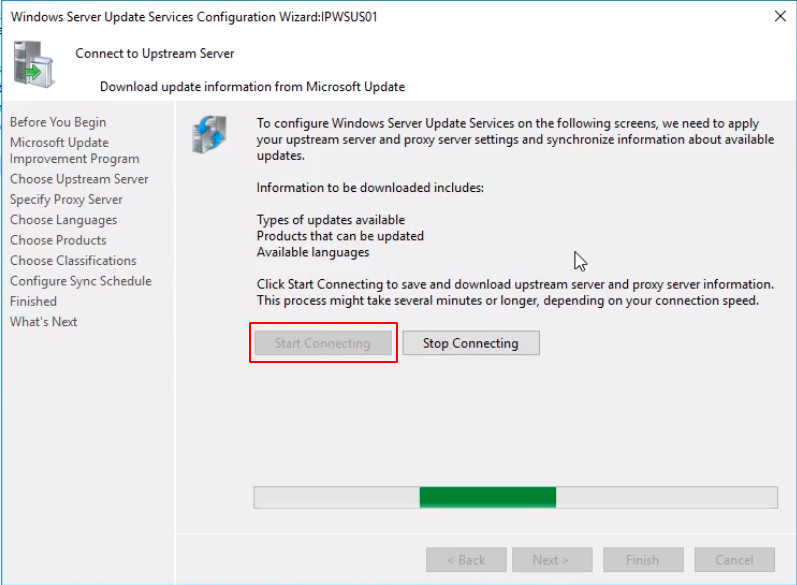
When done we will see the information to be downloaded. That includes Types of updates available, Products that can…
No comments yet. Add the first comment to start the discussion.