
Deploying a Desktop Background to your domain with GPO (Group Policy Object)
In this lecture, we will create a GPO that will configure our desktop background for all our Domain Users. This is not a Computer configuration, it is a User Configuration. So, when we want to link the OU we will do it to an OU that contains User accounts or you can link it to the root of the Domain and will apply all Users inside the domain.
Steps 1 - Create a File Share
- Right-click on Windows Explorer under the E:\ drive and choose to create a New > Folder.
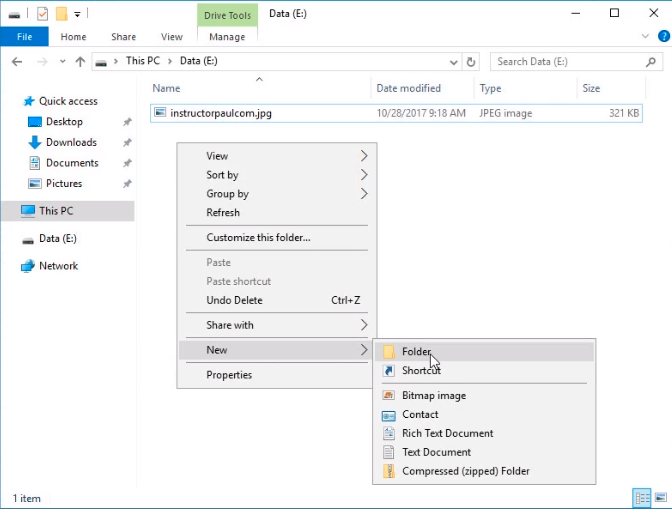
- Name the folder Desktop Backgrounds and add the instructorpaul.com.jpg image inside it.
- Share the folder by right-clicking it and selecting Properties.
- Under the Desktop Background Properties Window select the Sharing Tab and click on the Advanced Sharing button.
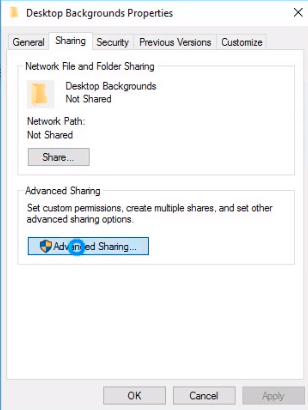
- Click on the Share this folder checkbox and then click on the Permissions button.
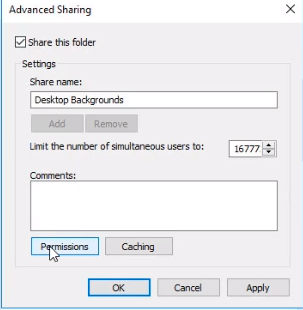
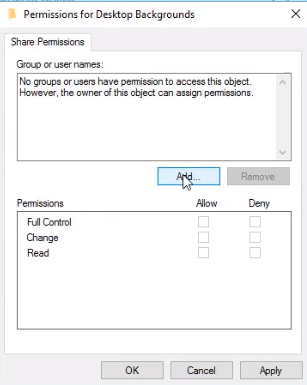
- By default, Everyone has Read permissions. To be a little bit more secure let’s delete the group by highlighting Everyone group and clicking on the Remove button.
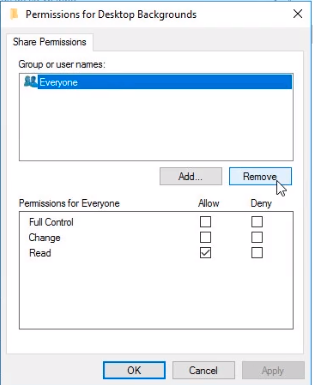
- Now let’s click on Add to add our Authenticated Users.
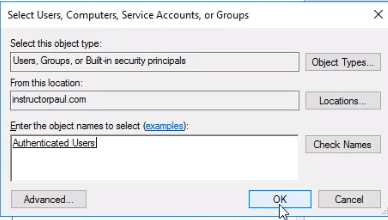
- Type in the Authenticated Users name and click on the Check Names button to resolve the name. If it is underlined it should be fine and click the OK button.
- Make sure Authenticated Users have Read Permissions and click on Apply and OK buttons.…
No comments yet. Add the first comment to start the discussion.