
Configuring Windows Firewall with Group Policy
In this lecture, I am going to be showing you how to create Firewall Rules with Group Policy.
Now, you don’t have a need to just open firewall ports on your domain so in this lecture, we are just going to be opening the ports 1234 and we are going to deploy to the domain, we are going to test it in our computers, and we are going to see how it works and how you can do it inside of your domain.
Always remember to open just the ports you need.
Steps:
- In IPDC01 open Server Manager > Tools > Group Policy Management.
- Create a New GPO, Under the specified OU Domain Computers. Name it Firewall - Test 1234.
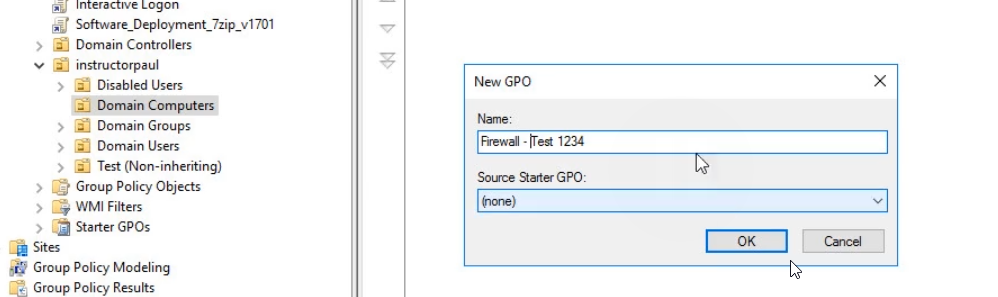
- Now we go into our GPO and Edit it by right-clicking on it.
NOTE: Firewall Settings is a Computer Configuration. When you create the GPO you need to link it to OUs that contain computer accounts.
- Head over to Computer Configuration (Firewall settings are based on PC OU).
- Policies > Windows Settings > Security Settings > Windows Firewall with Advanced Security.
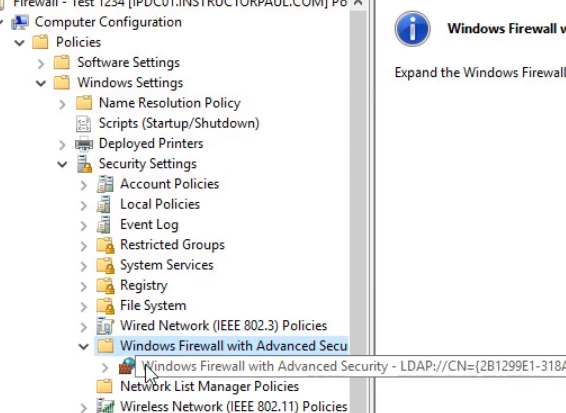
- Click into Windows Firewall. Now we can set Inbound/Outbound and Connection Security Rules. The rules are the same configuration for Inbound and Outbound.
- We can also adjust top-level firewall rules:
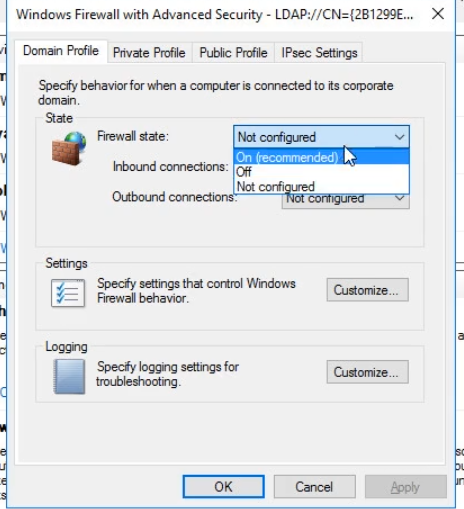
- Go to Inbound Rules > Right Click > New Rule
- Choose Port > Next > Select UDP/TCP and Type in the required port:
![Graphical user interface, text, application, emailDescription automatically generate…
No comments yet. Add the first comment to start the discussion.