
Configure DHCP Reservations
In this lecture, we are going to learn how to create a DHCP Reservation. We are going to create a reservation for our Windows 10 workstation with an IP address of 192.168.0.113.
In order to create the DHCP reservation, we would need to have our Domain Controller and our Windows 10 VM powered on.
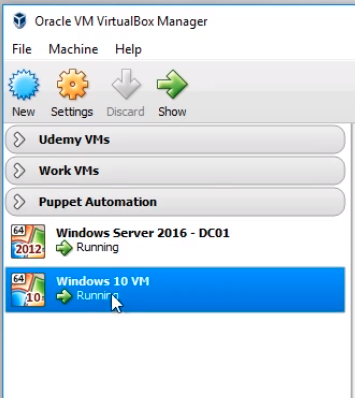
The first step is to grab the MAC Address from our Windows 10 workstation and then we will be ready to create the reservation on our DHCP Server which is ITFDC01. Next, we will configure the Windows 10 VM to use DHCP for our second networking adapter and see if we grab the IP Address we reserved for it.
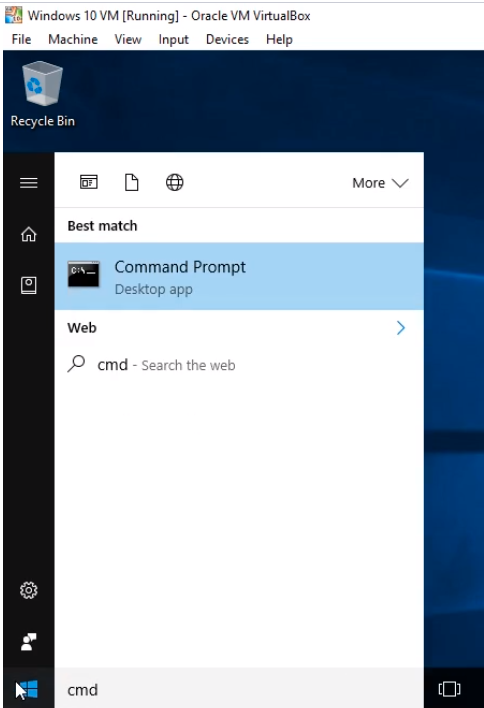
Start by logging in to Windows 10 VM. Open Command Prompt by clicking the Windows button and search for cmd.
Start Command Prompt by selecting it from the list.
We can grab the MAC Address of our VM by typing the getmac command.
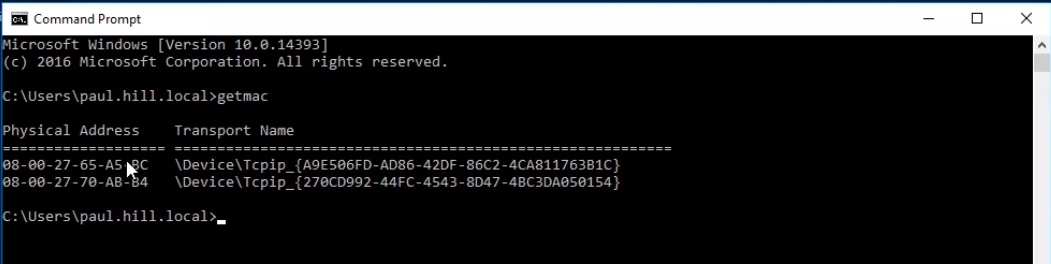
Notice there are two MAC addresses presented. This is because we are using two network adapters. We can figure out which MAC address belongs to each network adapter by looking at the advanced settings of our VM networking configuration.
On the VM window, click Machine and Settings...
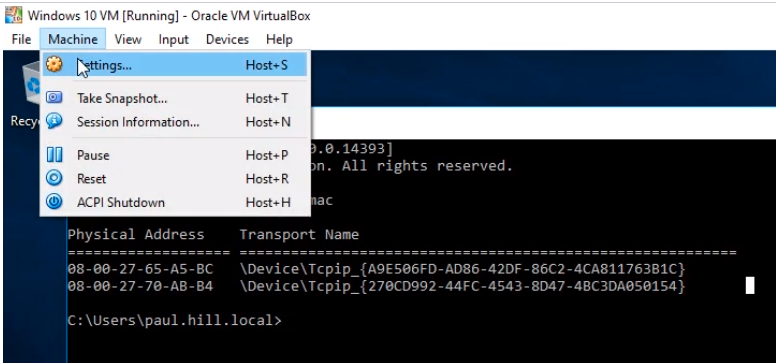
Click the Network tab and select Adapter 2. Expand the Advanced drop-down list and look for the MAC Address.
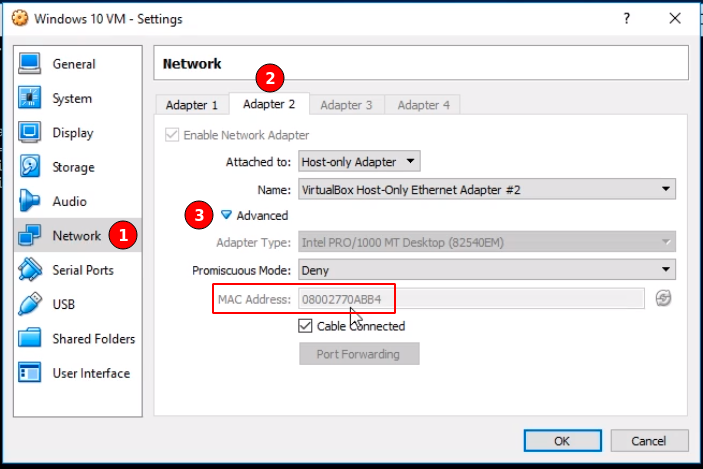
Now we can see that the MAC Address listed here is similar to the second MAC Address listed in the command prompt. This is the MAC Address we will use to create the DHCP reservation because this is the…
No comments yet. Add the first comment to start the discussion.